
Viewing unallocated shifts
The unallocated shifts KPI on the home page dashboard shows the number of unallocated shifts across your rosters for the next 30 days.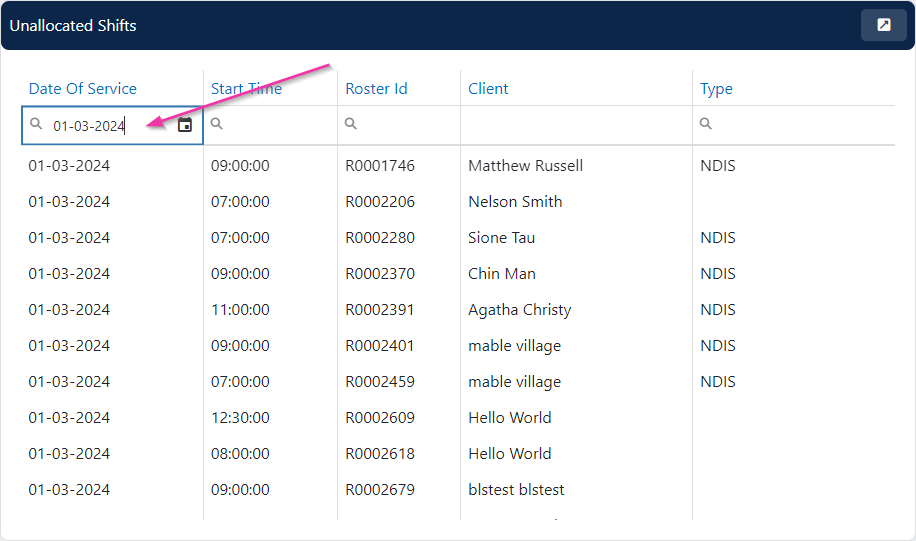
- Quick access window - view the list directly from the dashboard
- Click the KPI tile - opens a detailed view where you can filter by date, time, roster ID, and client

Filtering
To filter the unallocated shifts list, click in the date field and enter the date to see unallocated shifts for that specific day.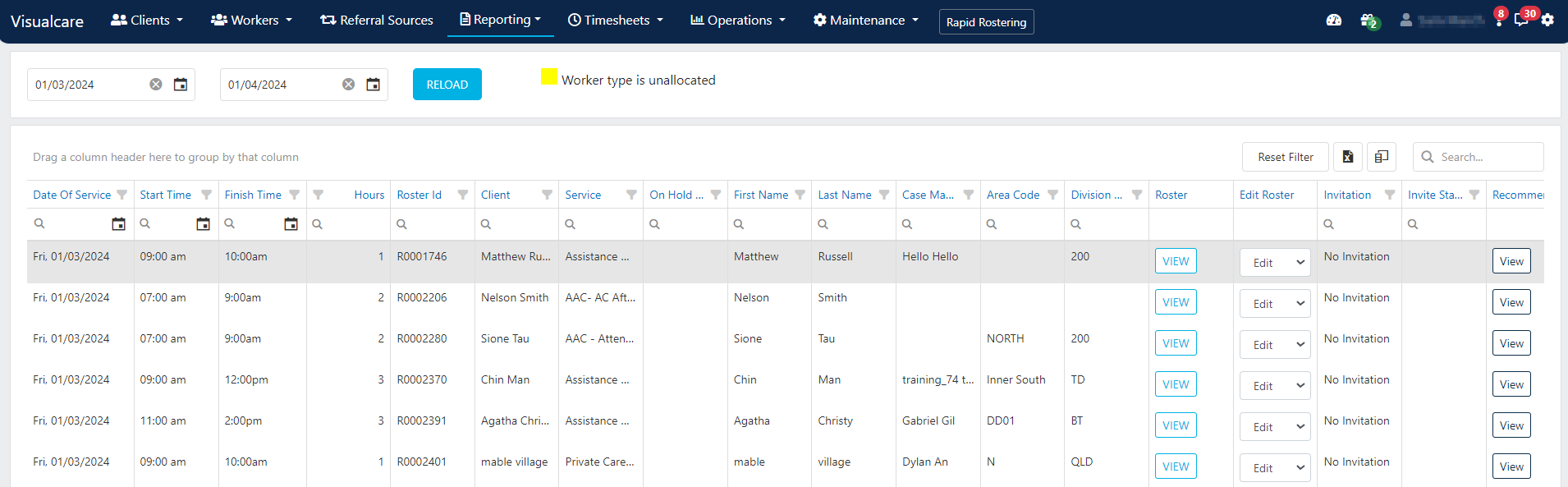
Resolving unallocated shifts
Once you’ve identified unallocated shifts, you can:- Open the client roster and assign a worker directly
- Use Roster invitations to send shift invitations to available workers
- Use the Worker select button when editing the shift to find a suitable worker
Running into issues?
See Scheduling troubleshooting for common errors and fixes.Related articles
Roster invitations
Send shift invitations to available workers
Conflict management
Identify and resolve shift conflicts
Worker select button
Filter and find the right worker for a shift
Timeline views
View rosters across workers and spot gaps