
Running an expenses report
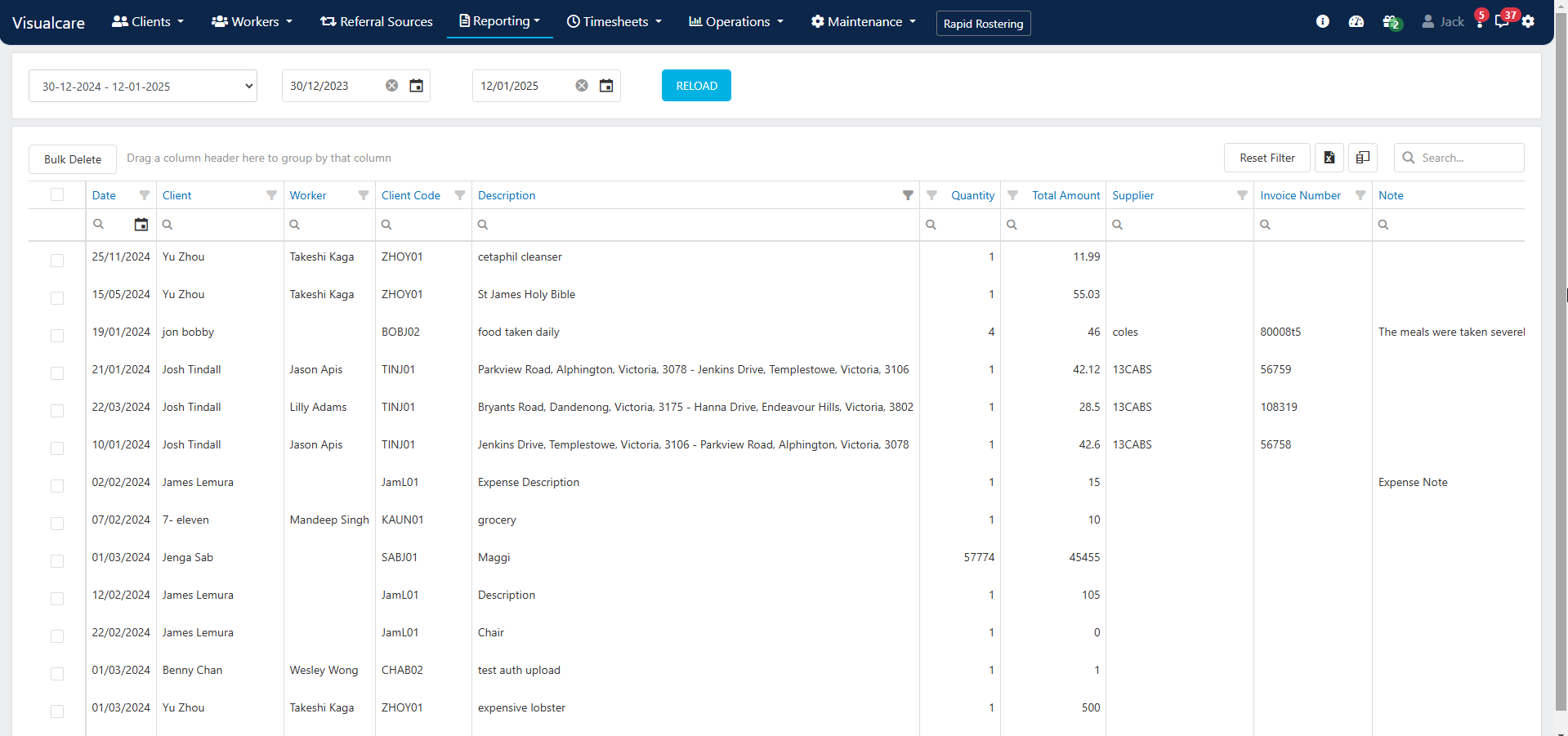
- Use the date drop-down in the top left to select a predefined date range, or choose a custom date range
- Click Reload
- Information related to expenses displays in the columns, with additional column options available via the Column Chooser
- Apply filters to columns to narrow down specific data
- Export the table to Excel for further analysis
Running into issues?
See General troubleshooting for common errors and fixes.Related articles
Client expenses
Add and manage expenses on client profiles
Client reports
Run reports on client data
Claiming and invoicing overview
Overview of billing and export options