
Notes and tasks
Open the worker’s profile and navigate to the Notes tab. This tab lists all notes and tasks assigned to the worker.
Filtering notes
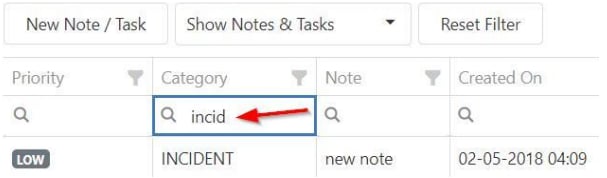
Use the filters at the top to narrow the list. You also have the option to:- Click the filter icon on any column header to filter by that column
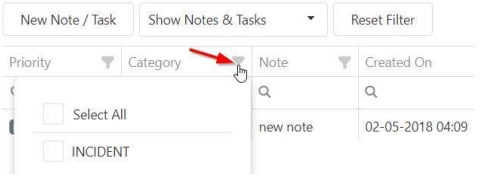
- Type directly in the filter field for a manual search
Creating a note or task
Click New Note/Task to create a new entry.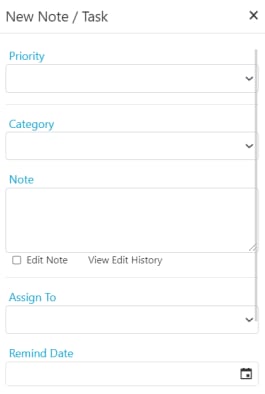
Editing a note or task
Double-click on a note to open and edit it.Documents
Open the worker’s profile and navigate to the Documents tab to manage file storage.Uploading a document
Click Select File to choose a file, then click Upload to attach it to the worker’s profile.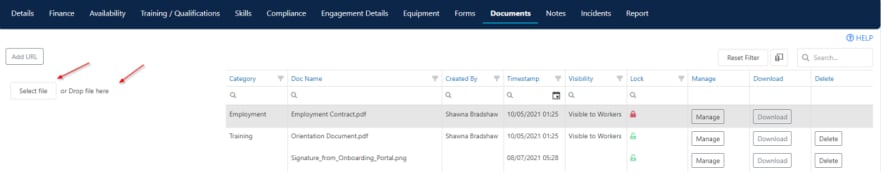
Managing documents
Click Manage on a document to open its profile, where you assign a category and lock the file to prevent deletion.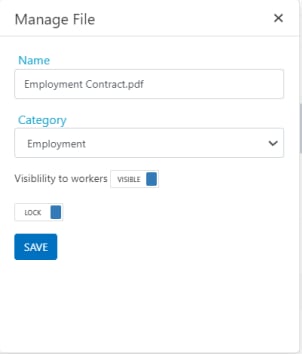
Making a document visible to all workers in Vworker
Documents uploaded to a worker’s profile are only visible to that worker. To share a document with all workers through the Vworker app, upload it through Maintenance instead.1
Go to Maintenance → Documents
Navigate to Maintenance → Documents and upload the file.
2
Open the document's settings
Click Manage on the uploaded file.
3
Set visibility
Under Visibility to Worker, change the setting to Visible.
4
Save
Click Save. The document now appears in the Vworker app for all workers.
Running into issues?
See Worker management troubleshooting for common errors and fixes.Related articles
Creating a worker profile
Set up a new worker in Visualcare
Messaging
Send and receive messages with workers
Managing worker compliance
Track compliance items on a worker profile