
Viewing compliance items
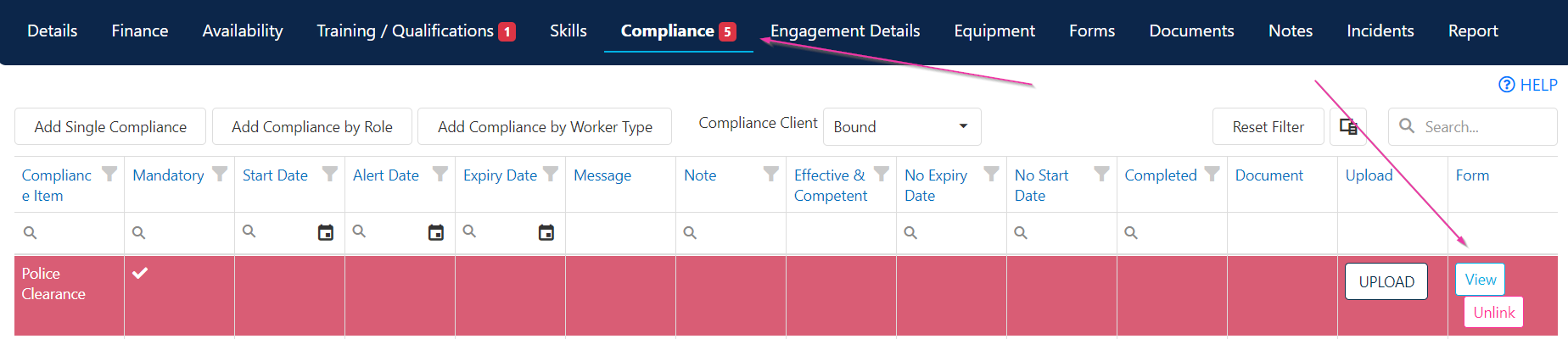
Open the worker’s profile and navigate to the Compliance tab. Compliance items flow through automatically from the Maintenance area based on your organisation’s configuration.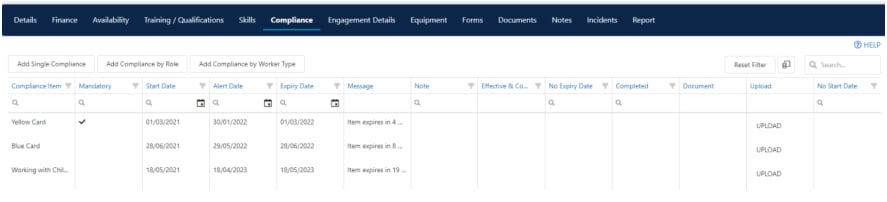
Updating compliance items
When you edit the Start Date on a compliance item, the Alert Date and Expiry Date update automatically based on the warning days and expiry days configured in Maintenance. These dates are overridable if needed. If the Required field is ticked, the item is mandatory and needs to be completed.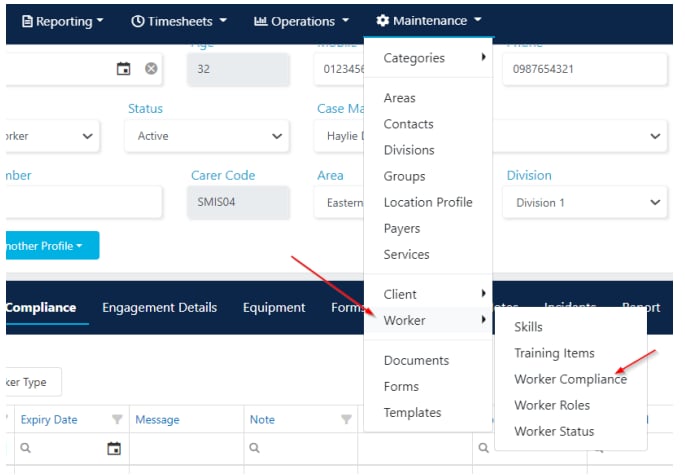
Compliance and rostering
When selecting a worker for a shift, the rostering view highlights only workers who are fully compliant by default.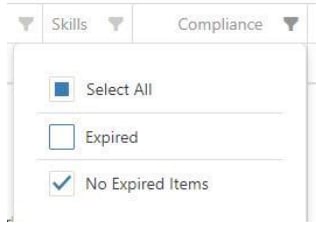
Forms compliance
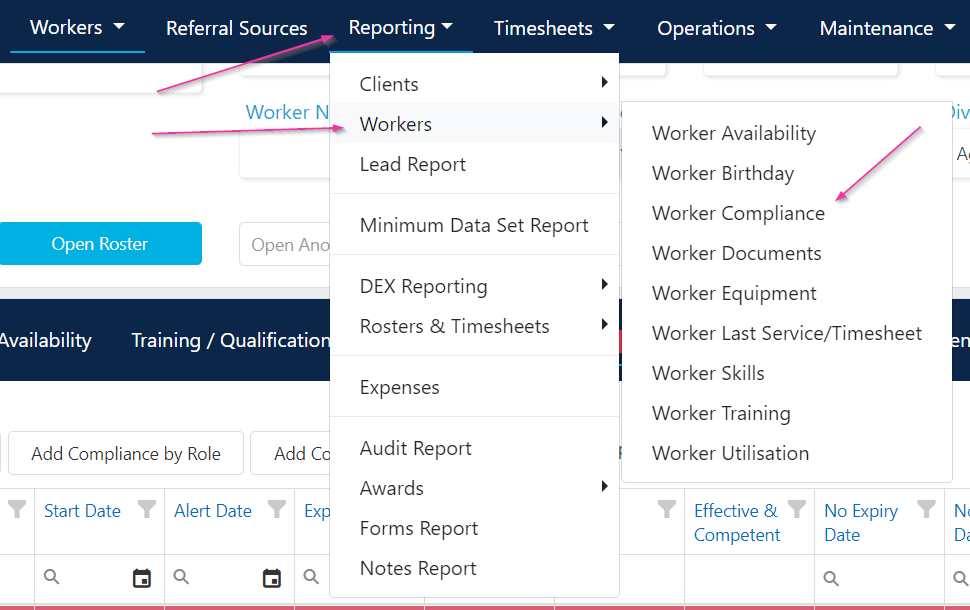
Linked forms appear under the compliance tab and in the worker compliance report.- Click View to open a linked form
- Click Unlink to remove a form from a compliance item

Running into issues?
See Worker management troubleshooting for common errors and fixes.Related articles
Worker compliance configuration
How compliance items flow from Maintenance to profiles
Compliance workflows and settings
Configure compliance items in Maintenance
Creating a worker profile
Set up a new worker in Visualcare