
Setting availability
Open the worker’s profile and navigate to the Availability tab in the lower section of the screen.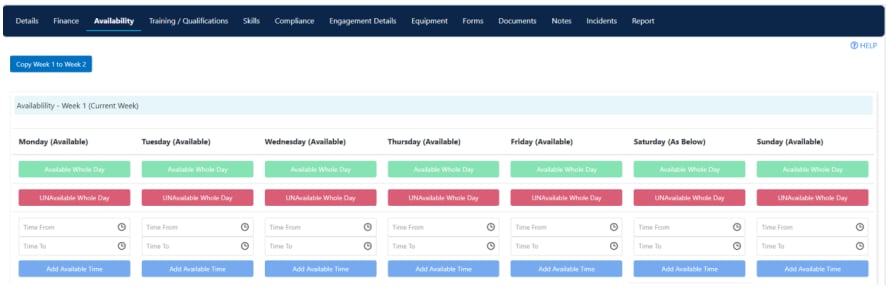
To set split availability throughout the day (for example, available from 9:00 AM to 12:00 PM and then 3:00 PM to 10:00 PM), click Add Available Time for each window.
Two-week rotating pattern
Availability uses a two-week rotating pattern. The logic starts from the first week of the year, so Week 1 and Week 2 alternate from that point forward. Set availability for both weeks if the worker has a fortnightly rotating schedule.Web availability setting
The Web Availability setting on a worker’s profile controls how far ahead the worker can update their own availability through the web portal or the Vworker app. The options are:
This setting defaults to the value configured on the global settings page. You can override it per worker by changing the value on their individual profile.
Disabling a worker from rostering
If a worker is no longer available for allocation - for example, while on extended leave or during an investigation - you can remove them from the rostering drop-down without deleting their profile. Open the worker’s profile and locate the Current checkbox in the profile header. Untick it and click Save. The worker no longer appears as an option when allocating shifts in the roster. To reinstate the worker, simply tick Current and save again.Running into issues?
See Worker management troubleshooting for common errors and fixes.Related articles
Leave requests
Manage worker leave requests
Budget hours
Set daily budget hours to prevent over-rostering
Creating a worker profile
Set up a new worker in Visualcare