
What you’ll need
- Confirmed timesheets for the period you want to export
- Accounting codes set up on your client profiles, payer profiles, and services
- Your accounting software integration configured in Settings → Data Export
Instructions
1
Open data export
Navigate to Timesheets → Data Export.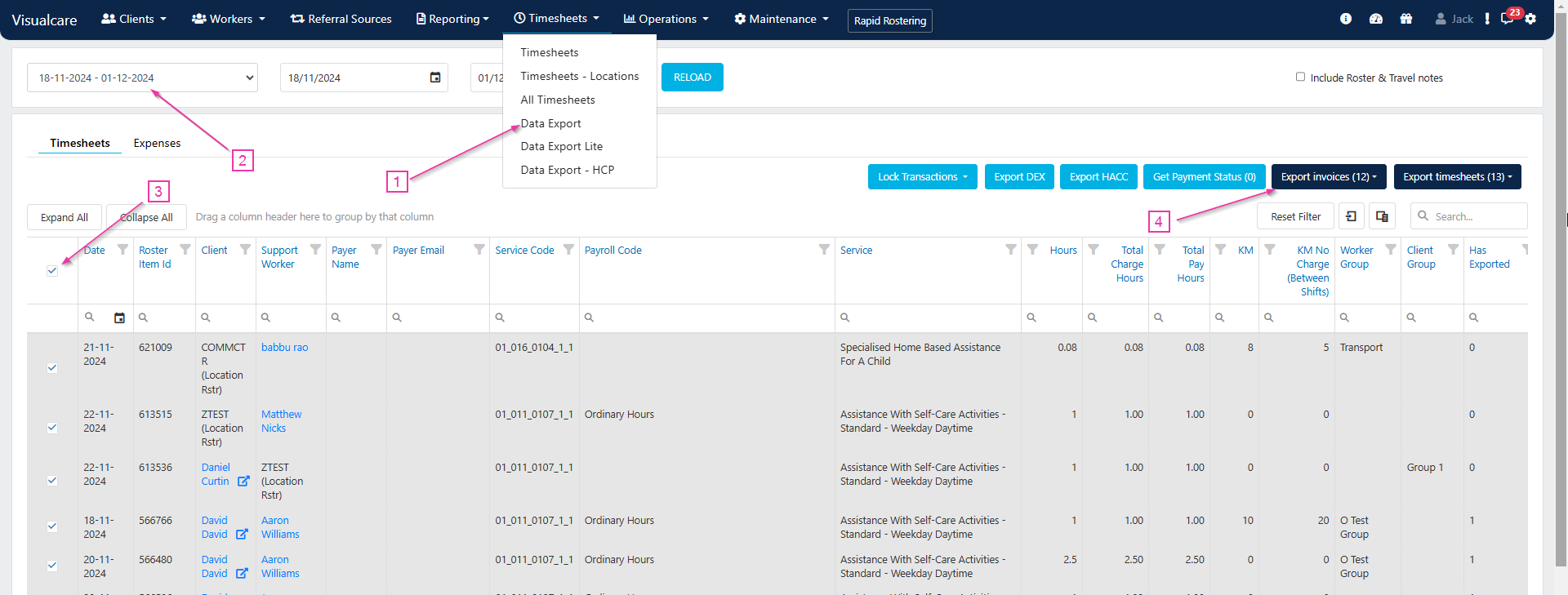
2
Set the date range
Configure the date range for the period you want to export and click Reload. All confirmed shifts for that period display at the bottom of the screen.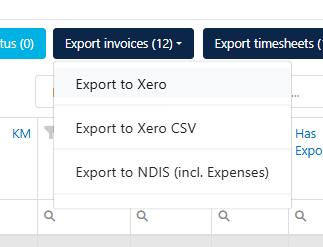
3
Select timesheets to export
Tick the box next to each timesheet you want to include, or use Select All to include everything. Then click Export Invoices and select your accounting software (for example, Export to Xero).
4
Review the export summary
A pop-up displays the export summary, showing any timesheets with errors. You can continue with the export or resolve the errors first (see the common errors section below).Click Process Export to proceed. This opens a new page for the export status.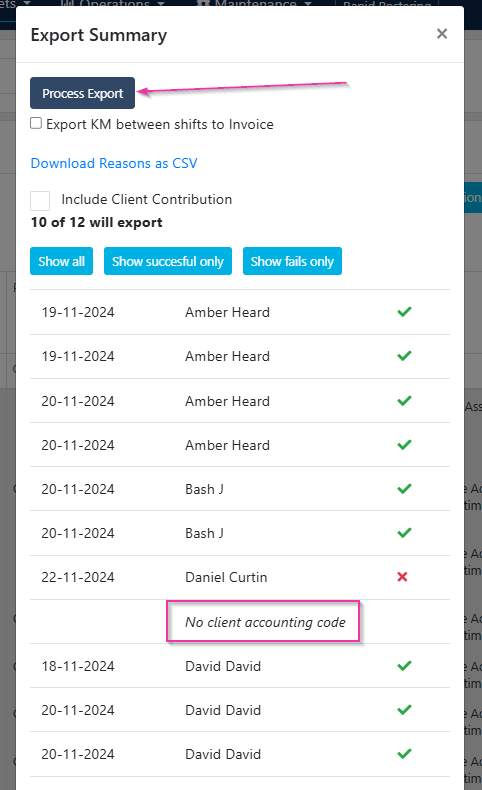
5
Start the import
On the export status page, click Start Import. Visualcare matches the accounting codes to your accounting software and exports the data. A success message confirms when the export completes, along with the generated invoice numbers.
Exporting expenses to invoice clients
Expenses marked as chargeable to the client are exported separately from timesheets.1
Open the expenses tab
On the Data Export page, click Expenses at the top. All expenses in the selected date range appear.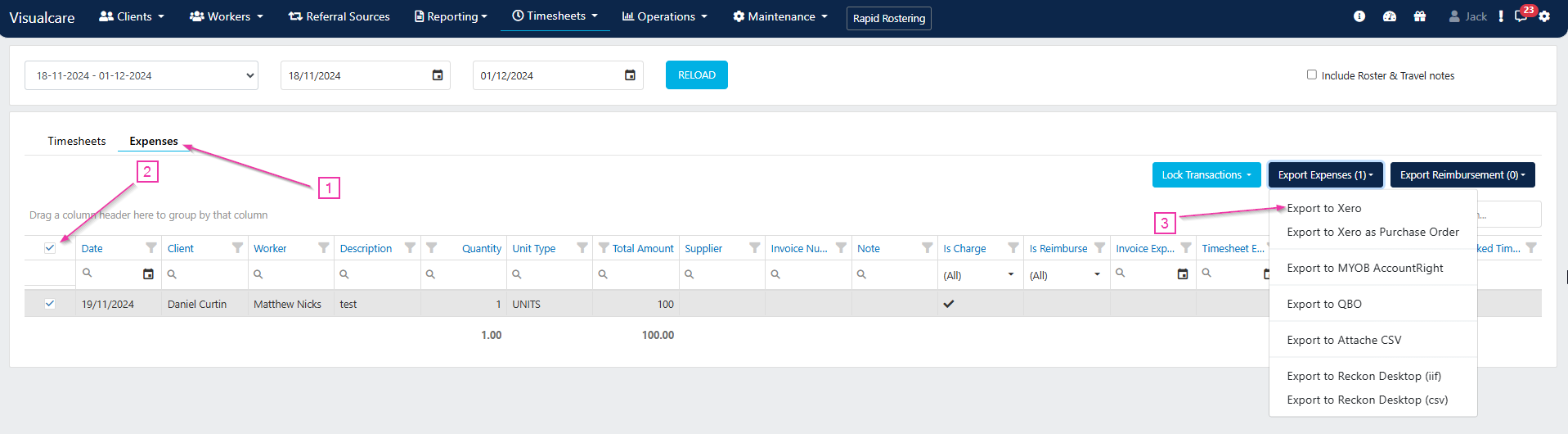
2
Select and export
Select the expenses you want to export, then click Export Expenses → Export to Xero (or your accounting software).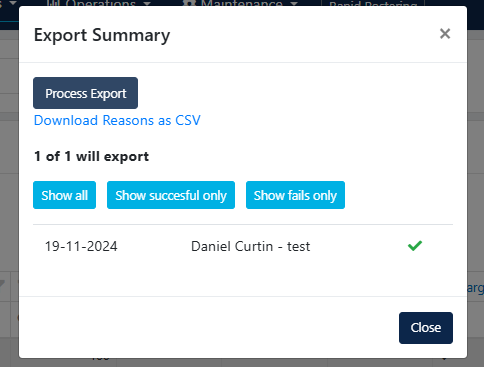
3
Process the export
Click Process Export on the export summary pop-up. This opens the export status page. Click Start Import to send the expenses to your accounting software.
How invoice matching works
Visualcare determines where to send each invoice using this logic:- Agreement payer - if the client agreement has a payer listed, the invoice exports to that payer’s accounting code contact
- Client profile payer - if the agreement payer is blank, the system uses the payer listed on the client profile
- Client accounting code - if neither payer is set, the invoice goes to the contact matching the client’s accounting code
Configuring data export settings
Navigate to Settings → Data Export to configure your integration.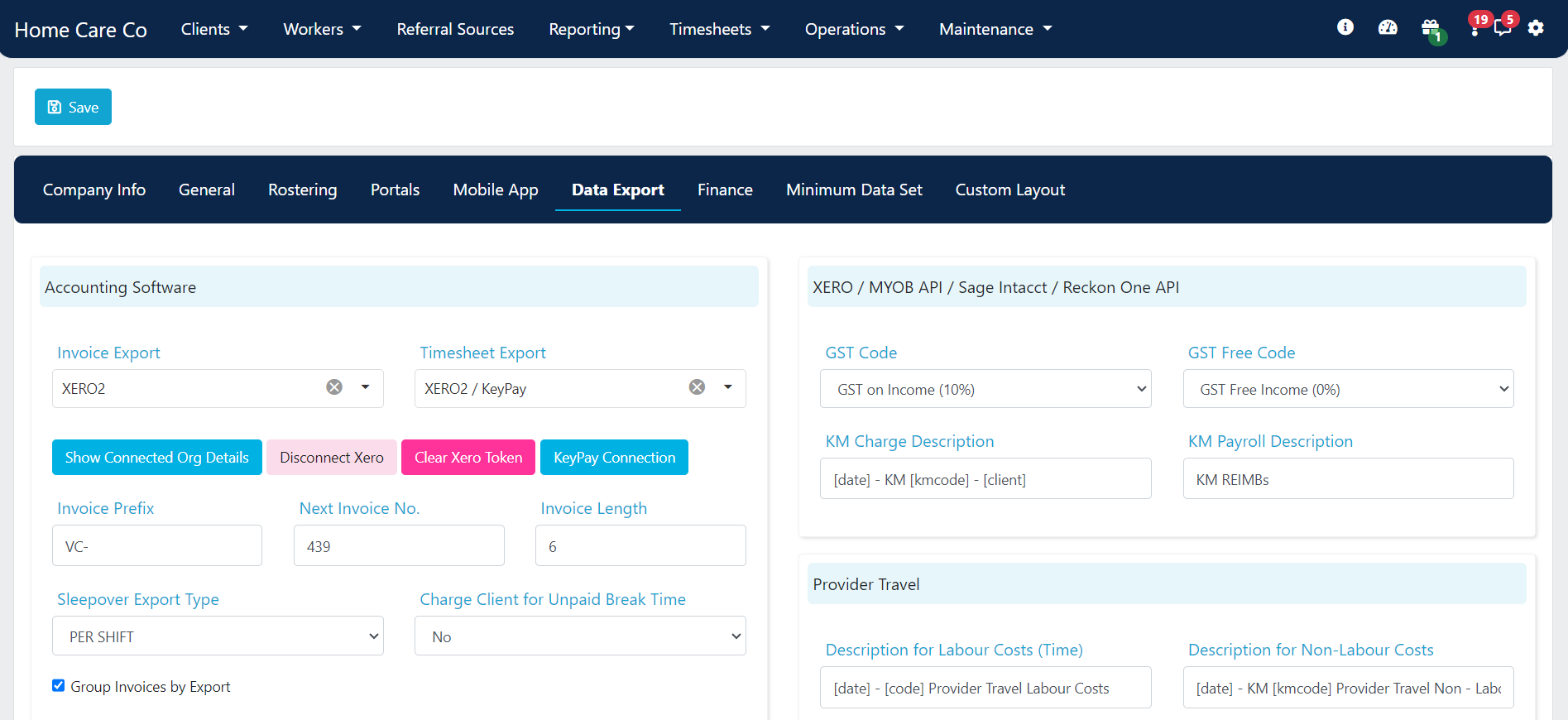
Accounting software connections
The Accounting Software section contains the API connections and integration details for each supported platform. For specific setup guides:- Xero - see Integrations
- MYOB - see Integrations
- Employment Hero - see Integrations
- KeyPay - see Integrations
Invoice descriptions and references
Set up invoice description and reference fields in Settings → Data Export → Accounting Software. Visualcare uses tags to pull details from the database into the fields that appear on your accounting software invoices.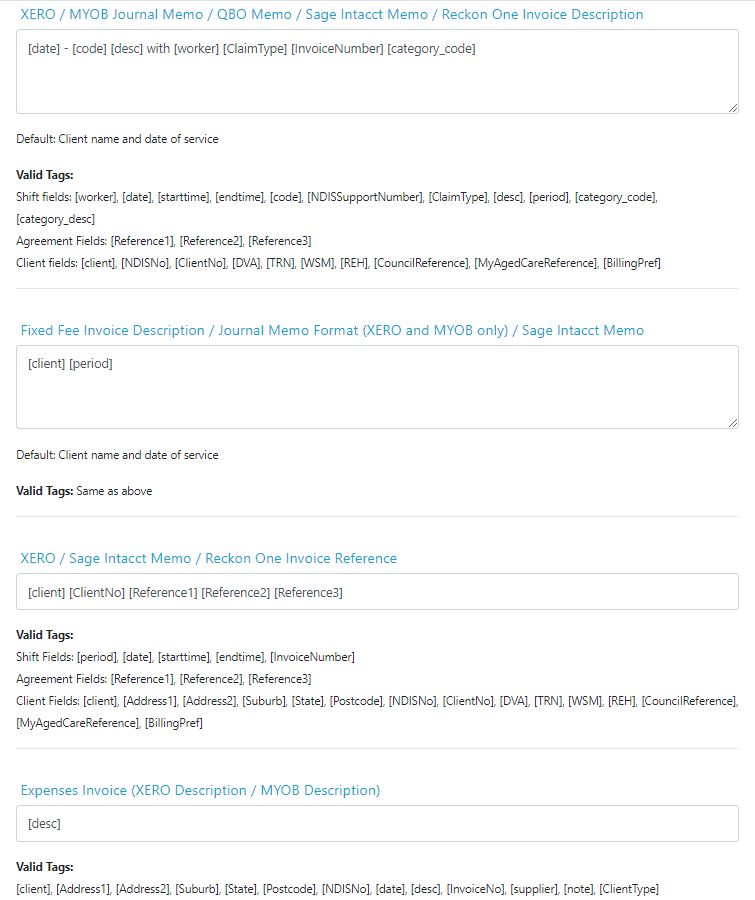
GST and KM settings
For Xero, MYOB API, Sage Intacct, and Reckon One API, configure GST income codes and KM descriptions in the dedicated section.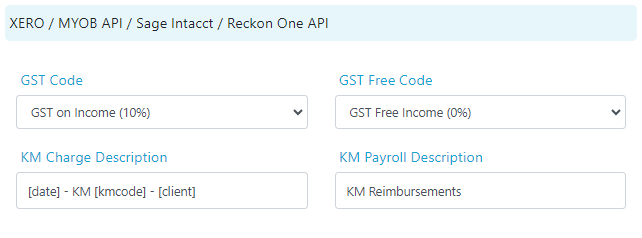
Provider travel label
Update the label that flows into accounting software invoices for NDIS Provider Travel.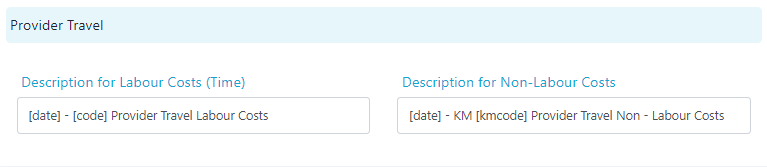
Xero-specific settings
Xero tracking and KM pay type settings
Xero tracking and KM pay type settings
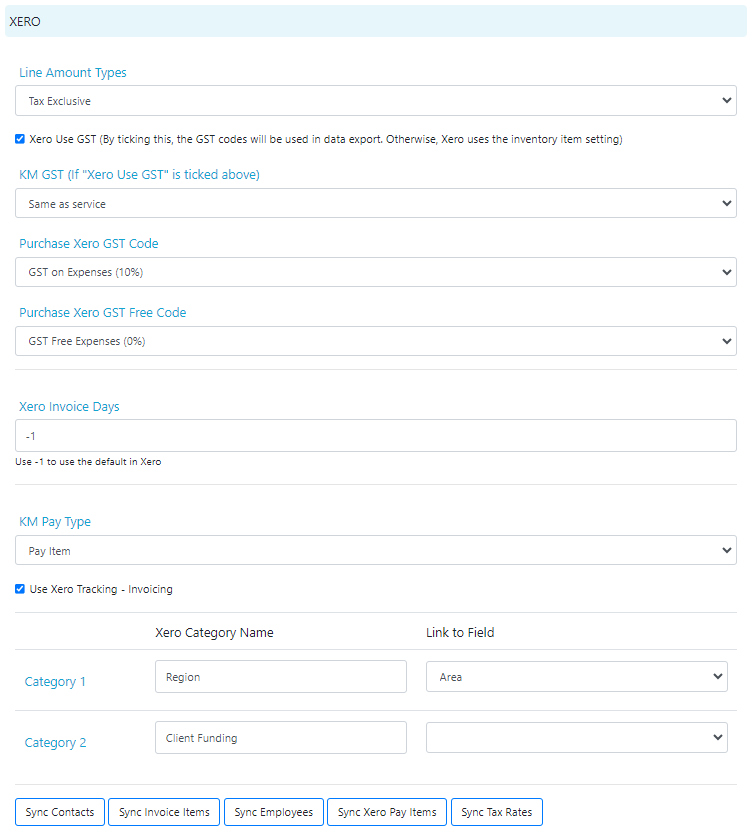
The Xero section lets you configure settings specific to Xero export:
- KM Pay Type - select pay item or reimbursement to match how your KM pay codes are set up in Xero
-
Xero Invoice Tracking - enable tracking when exporting invoices. Enter the Tracking Category name in the Xero Category Name field and select the Visualcare field to match. The category options in Xero need to match the options for the selected Visualcare field. For example, if your Xero Category Name is “Location” with options “North” and “South”, the Visualcare field (for example, Area) needs to have the same “North” and “South” options.
Running into issues?
See Finance troubleshooting for common errors and fixes.Related articles
Claiming and invoicing overview
Overview of all billing and export options in Visualcare
Exporting payroll data
Export timesheet data to your payroll software
Kilometres sync
Export and manage kilometre data for billing and reimbursement