

Private messages
Click the Private tab to view private conversations. The number of unread messages for each person is highlighted in red.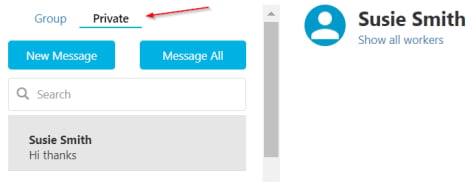
Marking messages as read
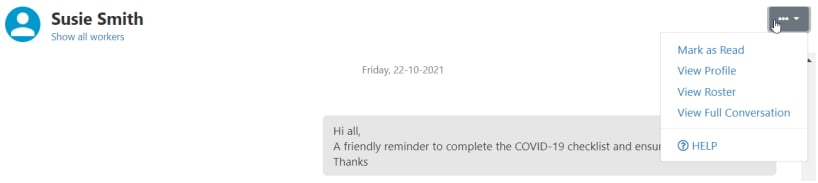
When a new message appears, click Mark as read to clear the unread indicator. This clears the red number for all office users.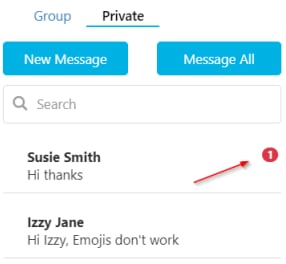
Viewing read receipts
Click the information icon (i) to see who has read each message and when.
Group messages
Click the Group tab to view group conversations. Unread message counts appear next to each group name.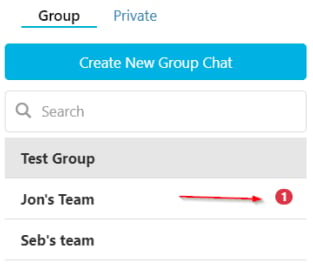
Creating a new group
Click the Create new Group Chat icon.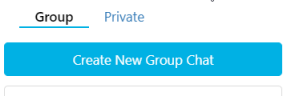
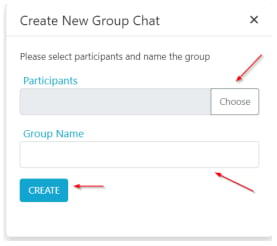
Managing a group
To edit the list of users in a group, click Manage group.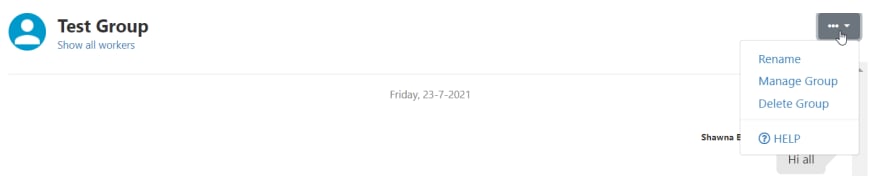
Running into issues?
See Client management troubleshooting for common errors and fixes.Related articles
Notes and tasks
Manage notes including those from the Vworker app
Creating a client profile
Configure client profiles including vAboutMe messaging access