
Accessing travel time settings
Go to Settings → Rostering to view and update settings related to shift timing and travel.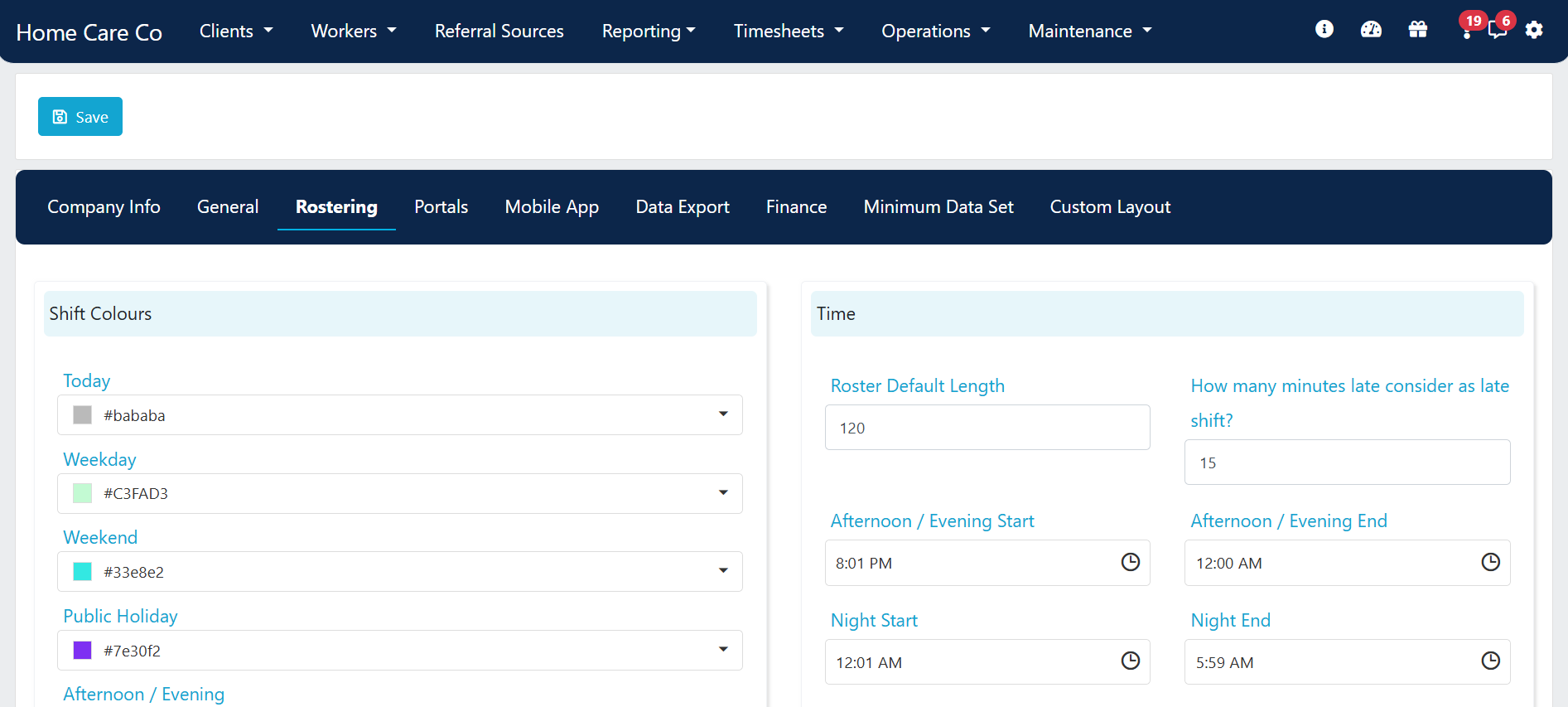
Time settings
The time settings section controls how shift times behave in rosters and flow through to timesheets.Auto split shift
Ticking the Auto Split Shift box makes the system automatically split overnight shifts at midnight and apply the correct service code for the following day.This only applies for shifts rostered overnight from a weekday to a weekend or public holiday (and vice versa). For example, a Friday night to Saturday shift, or a Saturday to Sunday shift.
Allow editing started shifts
The Allow shift(s) to be edited when it has already been started by workers setting controls whether you can change a shift on a client or location roster once a worker has started it.If the shift has been completed by the worker, you need to edit the details at the timesheet level rather than on the roster.
Running into issues?
See Timesheet troubleshooting for common errors and fixes.Related articles
Travel time and kilometres
Overview of how Visualcare captures transport and between-visit kilometres
Payroll settings
Configure payroll cycles, kilometre rates and export codes
Travel time confirmation
Confirm travel time and kilometre entries for payroll processing