
Instructions
1
Open the worker's timesheets
Go to Timesheets → Timesheets, find the worker, and click Edit to open their timesheet view.The screen is split into two sections:
- Top section - roster items that haven’t been confirmed yet
- Bottom section - confirmed timesheet items
2
Select the items to confirm
In the top section, tick the checkbox next to each roster item you want to confirm. You can select one or multiple items at once.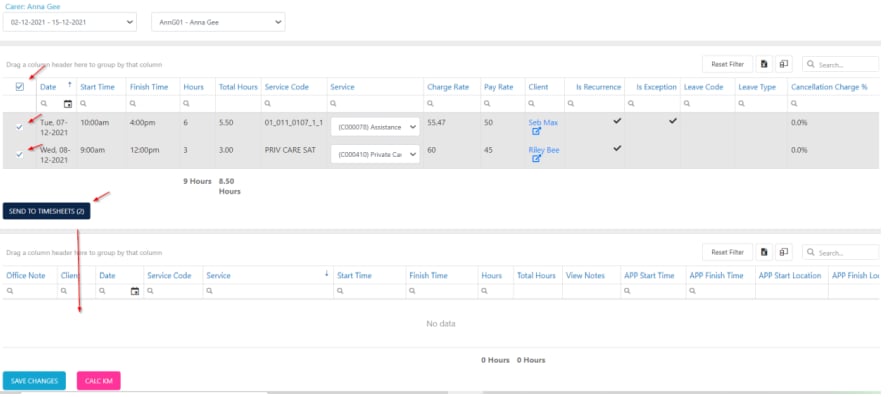
3
Send to timesheets
Click Send to timesheets. The selected items move from the top section to the bottom section as confirmed timesheet entries.
4
Review and save
Review the newly confirmed entries in the bottom section. You can edit the service, start and end times, charge rate, and pay rate if needed. Click Save Changes to finalise.
You only need to manually confirm timesheets when a worker has not started and completed a shift in the Vworker app. Shifts completed through the app are automatically confirmed.
Running into issues?
See Timesheet troubleshooting for common errors and fixes.Related articles
View by worker
View timesheets grouped by worker with confirmation status
Editing timesheets
Edit confirmed timesheet entries including times, rates and variations
Vworker: Clocking in and out
How workers start and complete shifts through the Vworker app
Vworker: Access for workers
Set up worker access to the Vworker app