
Worker day view
The worker day view shows all shifts for a single day, grouped by worker. Access it via Operations → Timeline Worker (Day).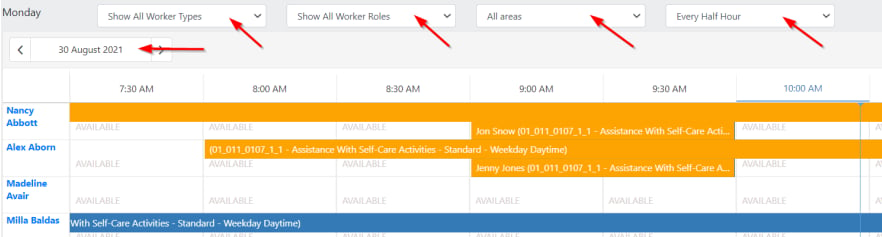
Key features
- Filter by worker type, worker roles, and area
- Change the time scale to show every hour for a more compact view
- Change the date to view different days
- Conflict highlighting - conflicting shifts are highlighted yellow. Click once to see the conflict detail
Reassigning shifts
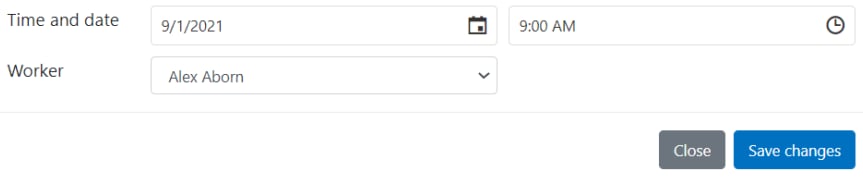
Double-click on a shift to edit it. Select the worker you want to move the shift to - you can also change the start time and date. The shift moves to the new worker’s roster automatically.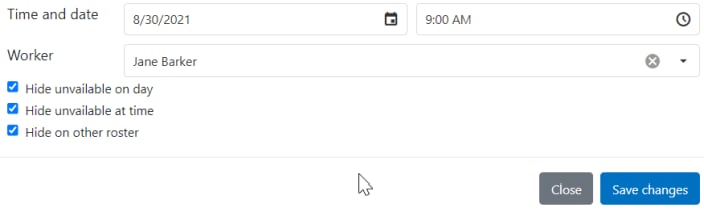
New shifts cannot be created from the worker day view. Create shifts from within the client roster instead.
Client day view
The client day view shows all shifts for a single day, grouped by client. Access it via Operations → Timeline Client (Day).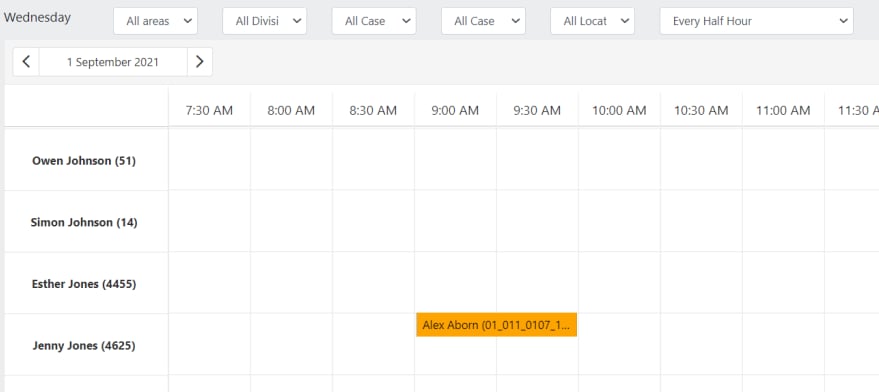
Key features
- Filter by area, division, case manager, and locations
- Change the time scale and date as with the worker view
- Conflict highlighting - conflicting shifts are highlighted yellow
Worker week and month view
The worker week and month view provides a broader overview across longer time periods. Access it via Operations → Timeline Worker (Week/Month). The data can be viewed by week, fortnight, or month.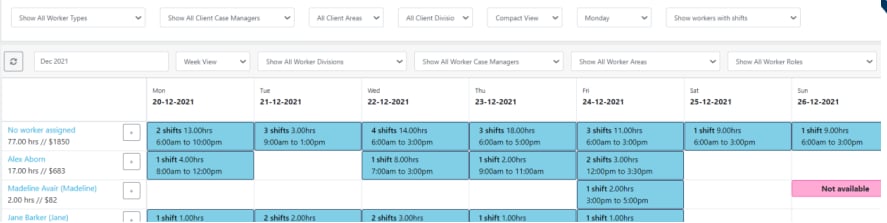
Navigation
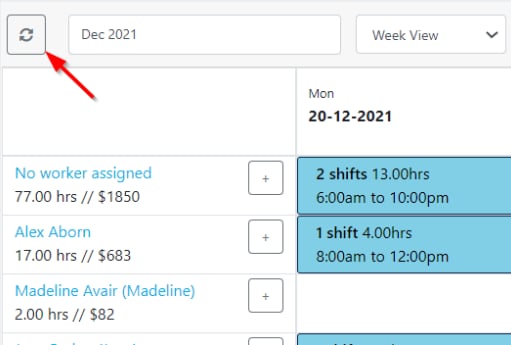
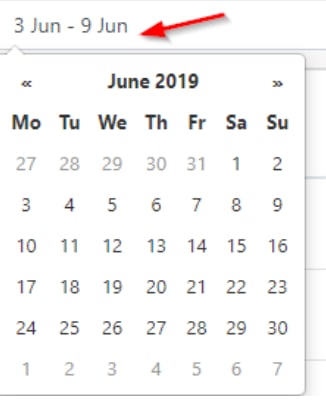
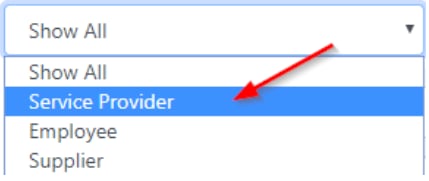
Compact vs extended view
- Compact view
- Extended view
Shifts are displayed as coloured blocks. You can click and drag shifts to reassign them to a different worker or day.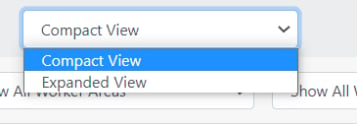
You need to be in compact view to drag and drop shifts between workers.
Leave and availability
Worker availability is visible in this view. If a worker is unavailable for the entire day, that day is highlighted purple.
Moving a shift
1
View shift details
Click on the shift count (for example, “3 shifts”) to view the individual shift details.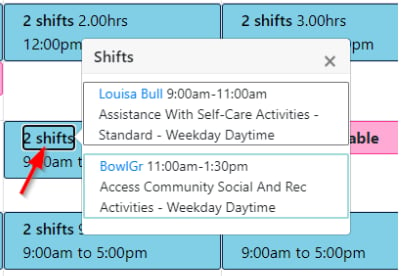
2
Drag the shift
Left-click on the shift you want to move and drag it. As you move it up and down the screen, the system highlights which workers are preferred and non-preferred.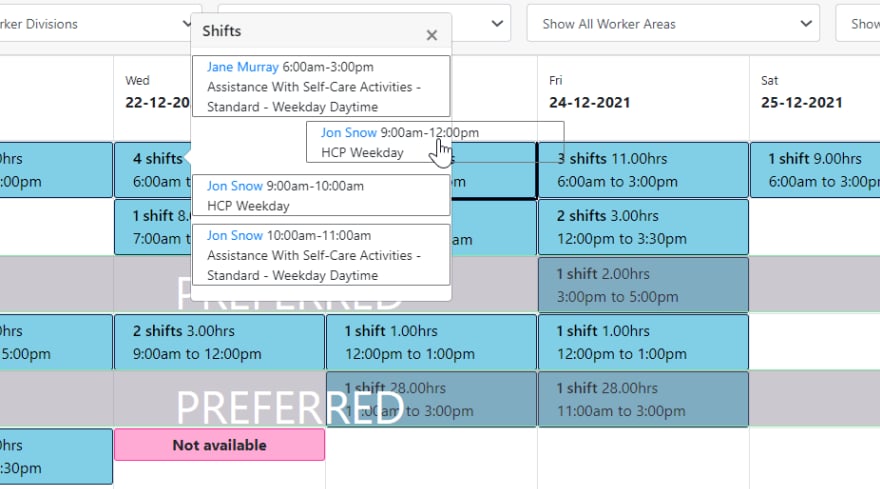
3
Confirm the move
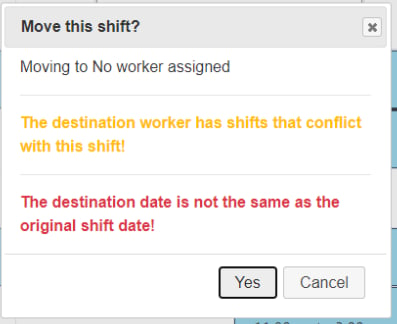
Drop the shift on the target worker and select Yes to confirm.
- A yellow alert appears if you try to move a shift to a conflicting time
-
A red alert appears if you try to move the shift to a different day than originally created
4
Review updated totals
The hours and dollar totals for the worker update when you drop the shift. This shows the total hours and pay for the selected timeframe.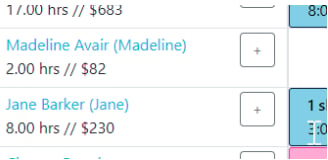
Creating a shift
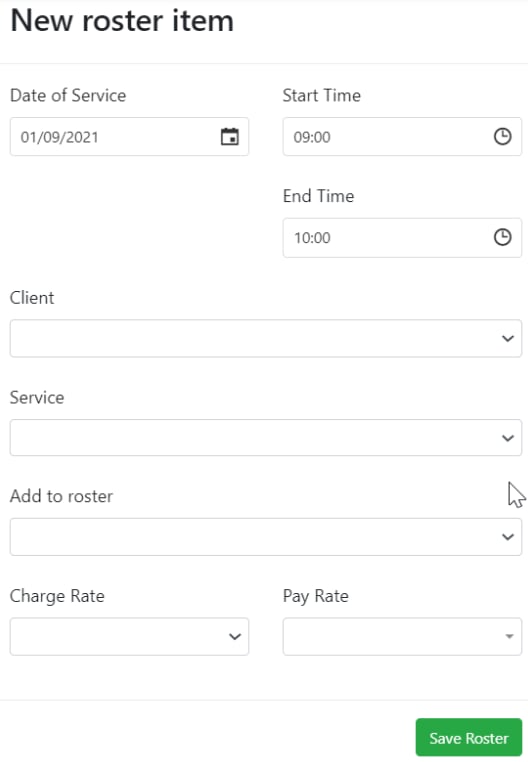
You can add a shift to a worker directly from this view by clicking the grey plus button next to their name.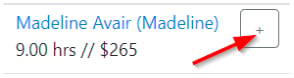
Fitting the whole month on screen
Fitting the whole month on screen
To fit the whole month view on your screen, use your browser’s zoom function. In Chrome, click the three-dot menu in the top right corner and use the - button to zoom out.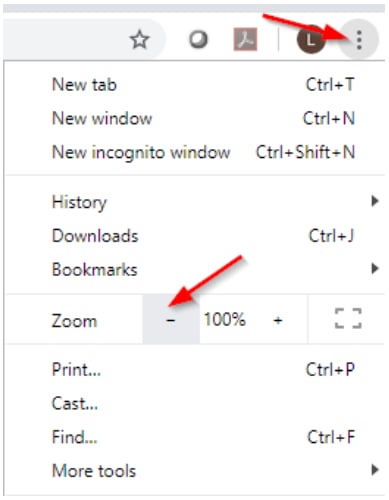
If you use the zoom function, reload the page afterwards to make sure everything lines up correctly.
Daily schedule
The daily schedule (Operations → Daily Schedule) shows rostered shifts in a list format. It displays the same information as the day view but gives you the ability to sort and filter columns, and export to Excel.Running into issues?
See Scheduling troubleshooting for common errors and fixes.Related articles
Conflict management
Identify and resolve shift conflicts
Creating new shifts
Create shifts in a client roster
Editing shifts
Edit one-off shifts, series, and manage leave
Unallocated shifts
Find and manage shifts without assigned workers