
Pay rates entered in Visualcare are not exported to your payroll software. The pay rate or pay template configured in your payroll software (for example, Xero) is the rate that gets paid. Visualcare’s role is to match the worker, service level, and hours to the correct pay item.
What you’ll need
- Confirmed timesheets for the period you want to export
- Worker profiles with accounting codes matching employee or supplier contacts in your payroll software
- Pay levels set in each worker’s Finance section
- Your payroll software integration configured in Settings → Data Export
Setting up payroll export
Before running your first payroll export, you need to configure pay levels, assign them to workers, and map each worker to their corresponding record in your payroll software.Configure pay levels
Pay levels are set up once and then assigned to workers. By default, the labels are generic (R1, R2, and so on). Adding descriptive labels makes it easier to identify the right level when assigning to workers.- Go to Settings → Settings → Finance → Pay Levels.
- Click Edit next to a pay level.
- Enter a descriptive label, for example “CAS Level 1 - Pay Point 3”.
- Save the changes.
Pay level labels are descriptive only. They don’t affect calculations - they’re there to help you identify the right level when setting up workers.
Assign pay levels to workers
Each worker needs a pay level assigned in their profile before their timesheets can export correctly. There are two ways to set a worker’s pay level: From the Finance tab:- Open the worker’s profile and go to the Finance tab.
- Click Update Pay Levels and Rates.
- Select the appropriate pay level for the worker.
- Choose a From Date for when the pay level takes effect.
- Click Update.
- Open the worker’s profile and go to the Finance tab.
- Click Update Pay Level.
- Select the pay level from the drop-down.
- Choose the effective date.
- Click Save.
Map workers to your payroll software
Each worker profile also needs an Accounting Code linking it to the matching employee or supplier in your payroll software.- In the worker’s Finance tab, click the Accounting Code drop-down.
- Select Employees if the worker is paid as an employee in your payroll software, or Suppliers if they’re a contractor.
- If the worker doesn’t appear in the list, click Sync Code from Xero to import them.
Exporting timesheets for payroll
1
Open data export
Navigate to Timesheets → Data Export.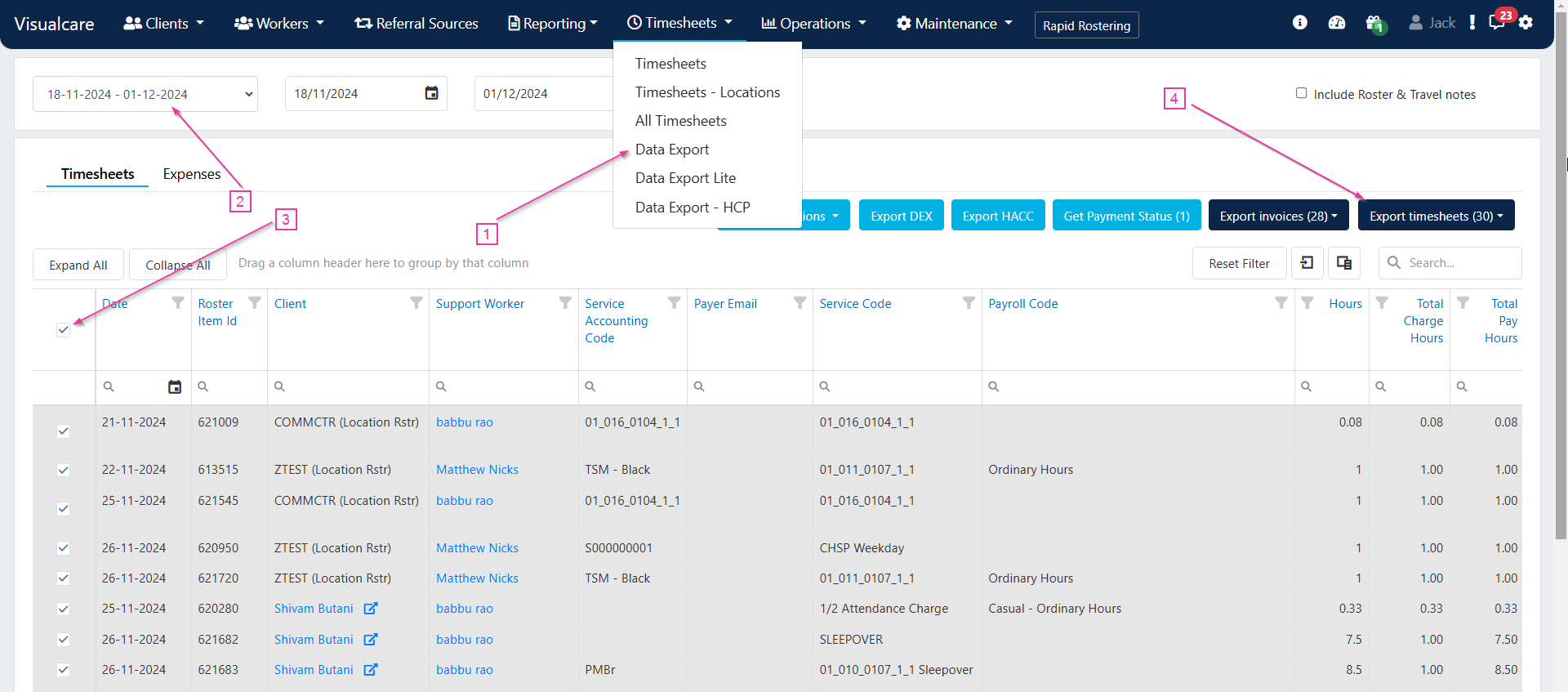
2
Set the date range
Configure the date range for the payroll period and click Reload.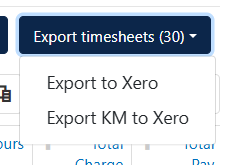
3
Select timesheets
Select the timesheets you want to export by ticking individual items or selecting all. Then click Export Timesheets → Export to Xero (or your payroll software).
4
Review the export summary
The export summary pop-up shows any errors for the data you’re exporting. Click Process Export to proceed to the export status page.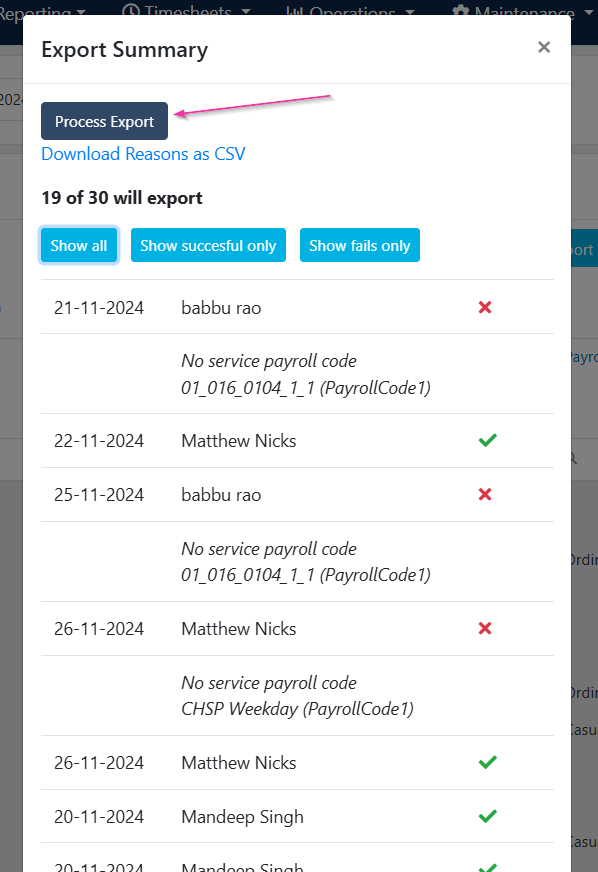
5
Start the import
Click Start Import to send the data from Visualcare to your payroll software. If errors appear on this page, they typically indicate a setup issue in the payroll software.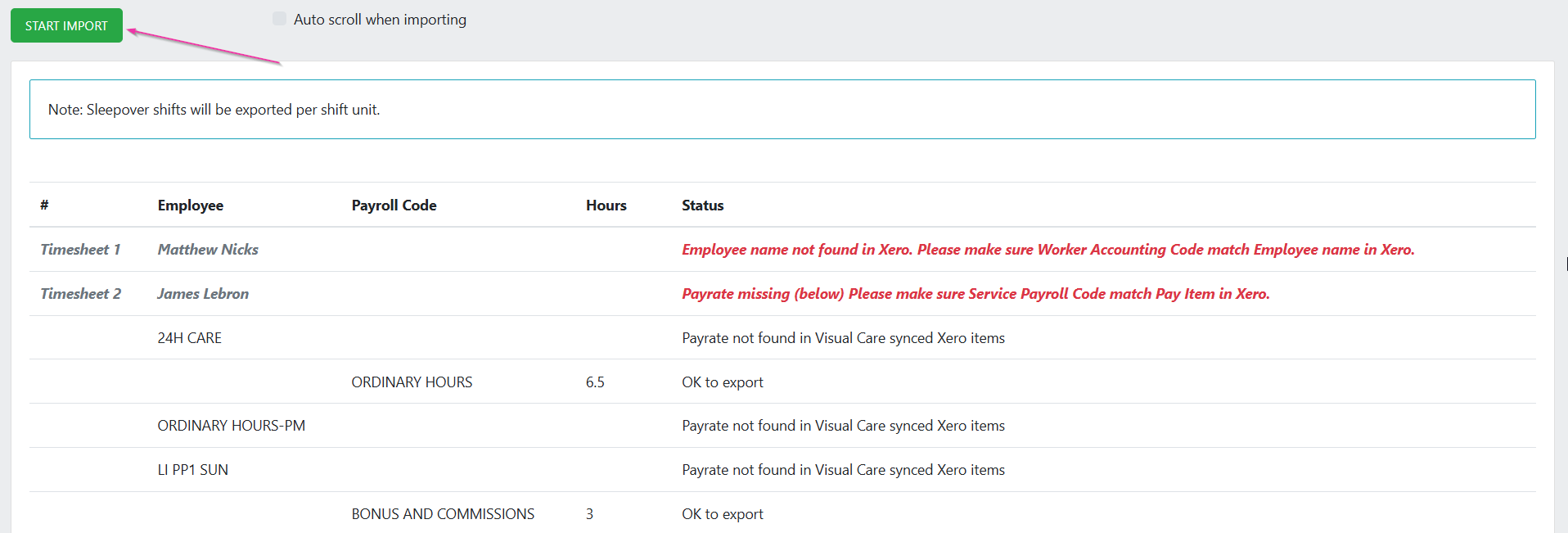
Exporting kilometres for payroll
After you’ve exported timesheets, approved them, and started a pay run in your payroll software, you can export kilometre data. On the same data export page, click Export Timesheets and select the Export KMs option.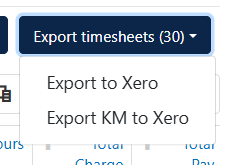
Exporting expense reimbursements
To reimburse workers for out-of-pocket expenses:1
Open the expenses tab
On the Data Export page, click Expenses at the top. All expenses in the selected date range appear.
2
Select and export
Select the expenses you want to reimburse, then click Export Reimbursement → Export to Xero (or your payroll software).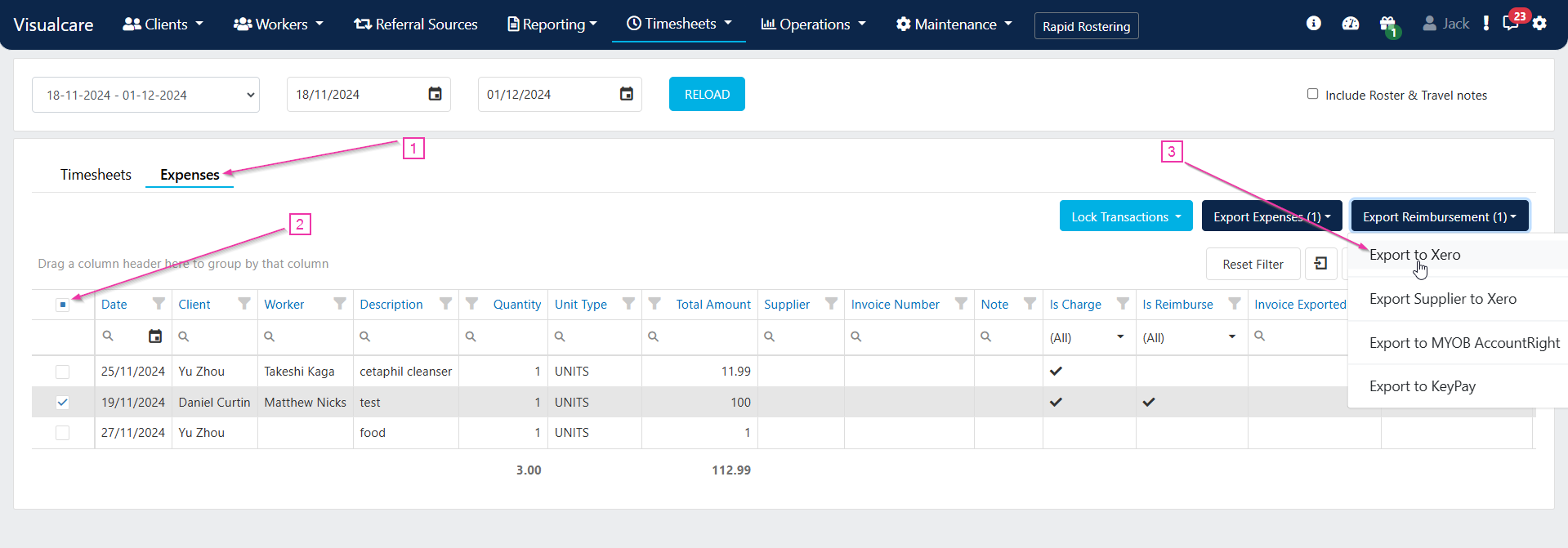
3
Process the export
Click Process Export on the summary pop-up, then Start Import on the export status page.
How payroll matching works
Visualcare matches payroll data using this logic:
When a worker provides a service, their pay level is matched to the service’s pay level to determine which pay item to export. The actual dollar rate comes from the pay item configuration in your payroll software, not from Visualcare.
Award interpreter settings
The award interpreter section in Settings → Data Export controls how overtime and broken shift calculations are included in payroll exports.Running into issues?
See Finance troubleshooting for common errors and fixes.Related articles
Claiming and invoicing overview
Overview of all billing and export options in Visualcare
Billing to accounting software
Export invoices to your accounting software
Award interpretation and pay rules
How Visualcare interprets awards and applies pay rate overrides
Kilometres sync
Export and manage kilometre data for billing and reimbursement