
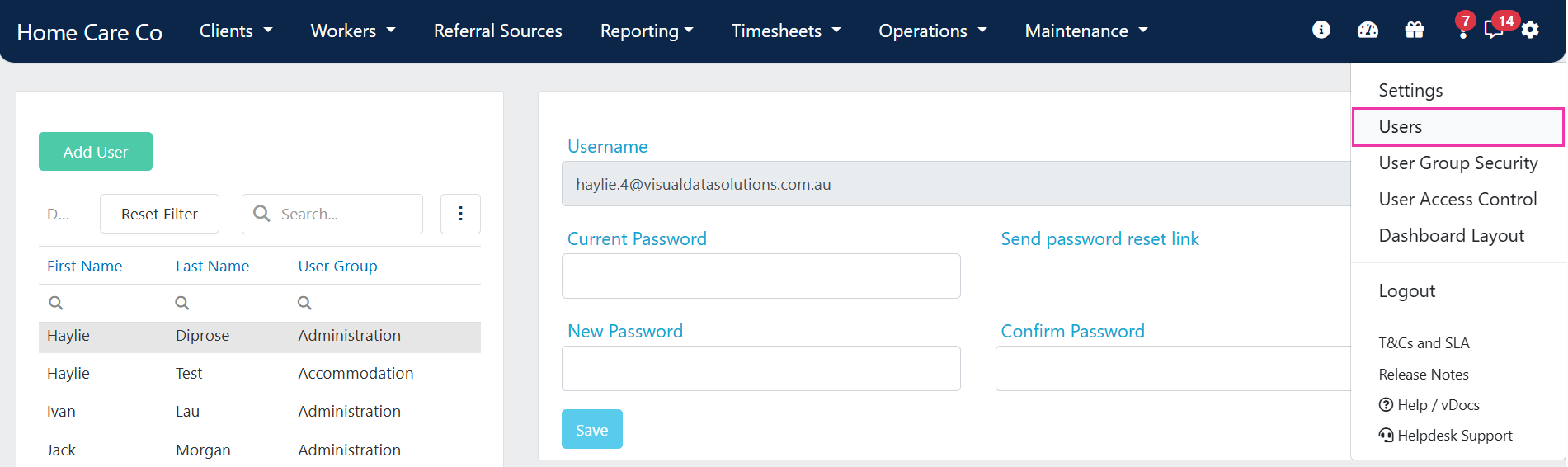
Adding a new user
1
Open the Add User form
Click Add User on the Users page.
2
Enter the user's details
Fill in the required fields, including name, email address, and username.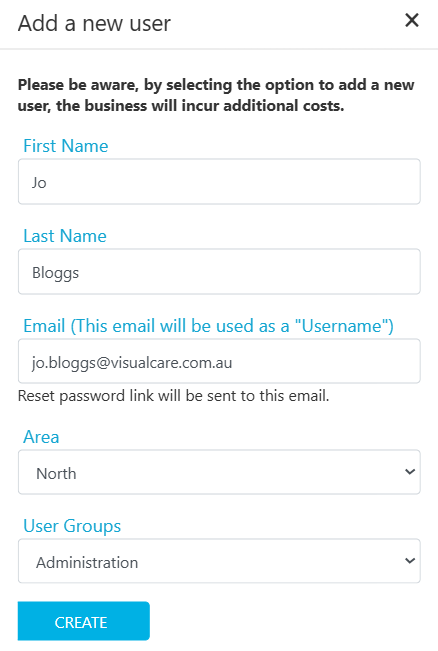
3
Create the account
Click Create to save the new user account. The user receives their login credentials by email.
Adding a new user may affect your billing. Each active user account is included in your Visualcare subscription count.
Editing a user
Select the user from the list on the left. Their details appear on the bottom right of the screen. Update the fields you need to change and click Save.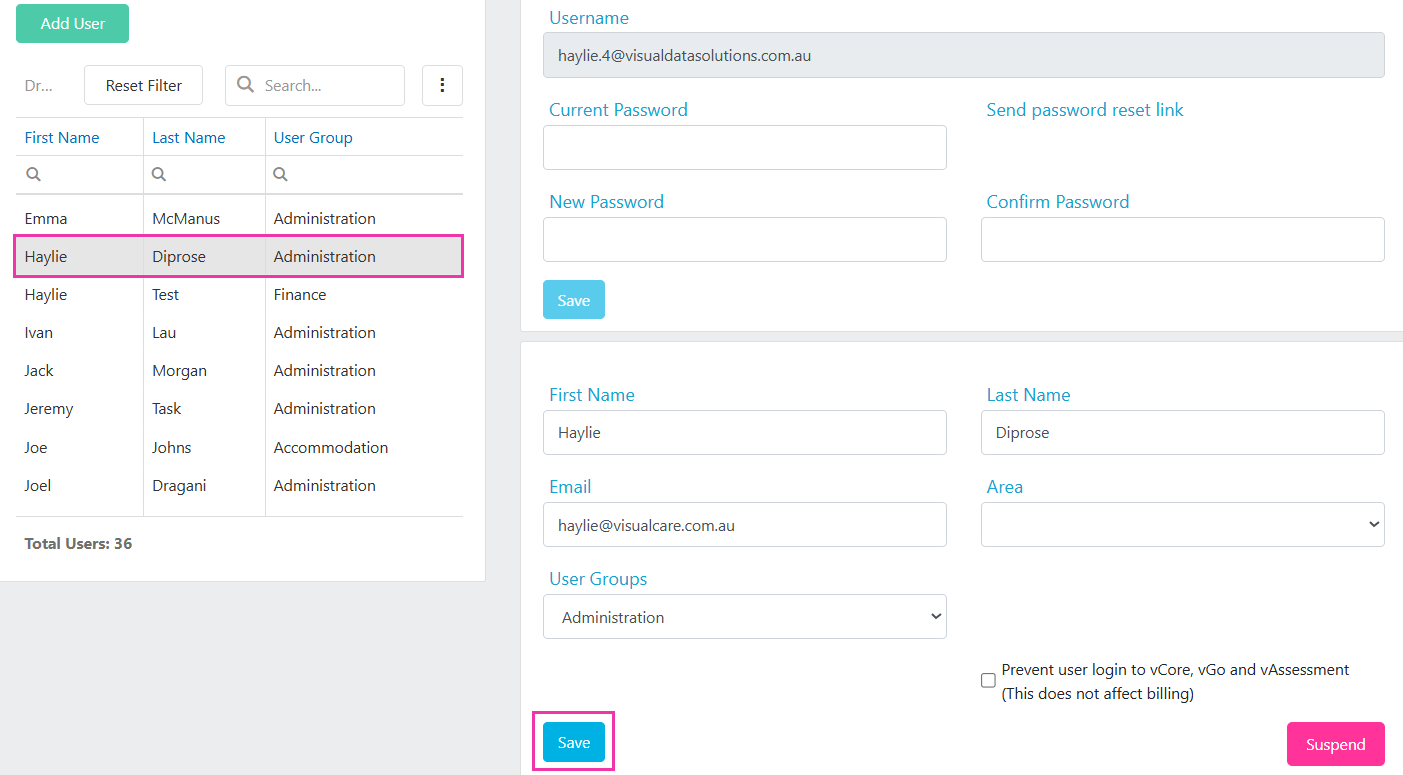
Assigning a user group
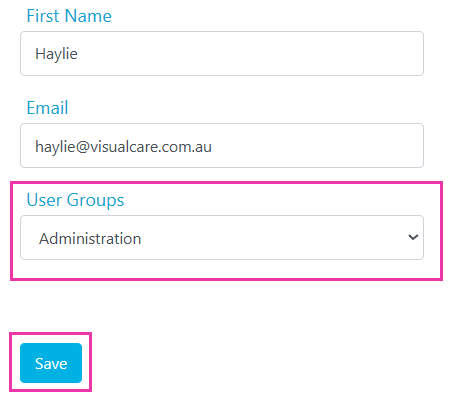
User groups control what each person can see and do in Visualcare. To assign a user to a group:- Select the user from the list
- Choose the required group from the User Groups dropdown
- Click Save
Resetting a user’s password
There are several ways to reset a password:- Self-service: a user can update their own password on the Users page by entering their current password, a new password, confirming it, and clicking Save
- Admin reset: select the user and click Send password reset link. The link is sent to the email address in the Username field and is valid for 20 minutes
- Helpdesk reset: if no administrator can access VCore, contact the Visualcare helpdesk at support@visualcare.com.au
The password reset link is sent to the email address in the Username field. If the user’s Email field contains a different address and the username email is not monitored, contact the helpdesk instead.
Two-factor authentication
Two-factor authentication (2FA) is required to access VCore. On first login, a QR code appears on the login screen. Scan it with an authenticator app (for example, Google Authenticator or Microsoft Authenticator) and enter the generated code to complete setup. If a user’s 2FA needs to be reset (for example, after switching phones), contact the Visualcare helpdesk at support@visualcare.com.au. See Resetting your password for the full 2FA reset process.Running into issues?
See Login and access troubleshooting for common login and permission problems.Related articles
User group security
Create user groups and configure permission levels
Suspending and deleting users
Disable or suspend user accounts
Resetting your password
Reset a forgotten password or re-enable 2FA
User access control
Restrict record visibility to specific user groups