> ## Documentation Index
> Fetch the complete documentation index at: https://support.visualcare.com.au/llms.txt
> Use this file to discover all available pages before exploring further.
# Managing availability
> Set and manage worker availability patterns in Visualcare
The availability tab on a worker profile defines when that worker is available for shifts. This information flows through to rostering, helping you allocate shifts to workers who are free at the right times.
## Setting availability
Open the worker's profile and navigate to the **Availability** tab in the lower section of the screen.
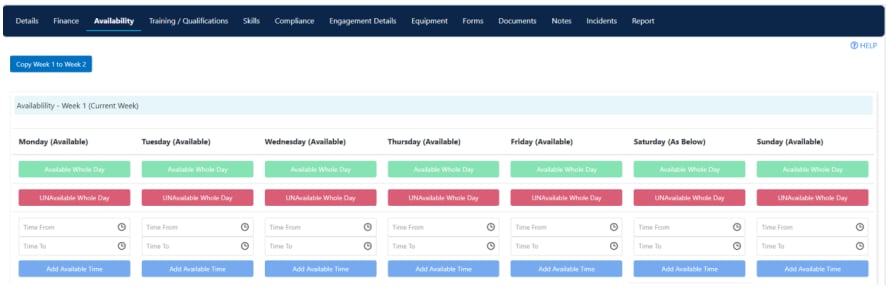 You have several options for entering availability:
| Option | What it does |
| --------------------------------- | -------------------------------------------------------------- |
| **Available for the Whole Day** | Marks the worker as available for the entire day |
| **Unavailable for the Whole Day** | Marks the worker as unavailable for the entire day |
| **Add Available Time** | Adds a specific time window (for example, 9:00 AM to 12:00 PM) |
To set split availability throughout the day (for example, available from 9:00 AM to 12:00 PM and then 3:00 PM to 10:00 PM), click **Add Available Time** for each window.
Clicking **Available for the Whole Day** or **Unavailable for the Whole Day** overwrites any existing time entries for that day.
## Two-week rotating pattern
Availability uses a two-week rotating pattern. The logic starts from the first week of the year, so Week 1 and Week 2 alternate from that point forward. Set availability for both weeks if the worker has a fortnightly rotating schedule.
## Web availability setting
The **Web Availability** setting on a worker's profile controls how far ahead the worker can update their own availability through the web portal or the Vworker app. The options are:
| Option | Behaviour |
| ----------------- | -------------------------------------------------------------------------------------- |
| **No limitation** | The worker can change their available time freely with no restriction on how far ahead |
| **1 week** | The worker can only update availability up to one week in advance |
| **2 weeks** | The worker can only update availability up to two weeks in advance |
This setting defaults to the value configured on the global settings page. You can override it per worker by changing the value on their individual profile.
## Disabling a worker from rostering
If a worker is no longer available for allocation - for example, while on extended leave or during an investigation - you can remove them from the rostering drop-down without deleting their profile.
Open the worker's profile and locate the **Current** checkbox in the profile header. Untick it and click **Save**. The worker no longer appears as an option when allocating shifts in the roster.
To reinstate the worker, simply tick **Current** and save again.
## Running into issues?
See [Worker management troubleshooting](/troubleshooting/general) for common errors and fixes.
## Related articles
Manage worker leave requests
Set daily budget hours to prevent over-rostering
Set up a new worker in Visualcare
You have several options for entering availability:
| Option | What it does |
| --------------------------------- | -------------------------------------------------------------- |
| **Available for the Whole Day** | Marks the worker as available for the entire day |
| **Unavailable for the Whole Day** | Marks the worker as unavailable for the entire day |
| **Add Available Time** | Adds a specific time window (for example, 9:00 AM to 12:00 PM) |
To set split availability throughout the day (for example, available from 9:00 AM to 12:00 PM and then 3:00 PM to 10:00 PM), click **Add Available Time** for each window.
Clicking **Available for the Whole Day** or **Unavailable for the Whole Day** overwrites any existing time entries for that day.
## Two-week rotating pattern
Availability uses a two-week rotating pattern. The logic starts from the first week of the year, so Week 1 and Week 2 alternate from that point forward. Set availability for both weeks if the worker has a fortnightly rotating schedule.
## Web availability setting
The **Web Availability** setting on a worker's profile controls how far ahead the worker can update their own availability through the web portal or the Vworker app. The options are:
| Option | Behaviour |
| ----------------- | -------------------------------------------------------------------------------------- |
| **No limitation** | The worker can change their available time freely with no restriction on how far ahead |
| **1 week** | The worker can only update availability up to one week in advance |
| **2 weeks** | The worker can only update availability up to two weeks in advance |
This setting defaults to the value configured on the global settings page. You can override it per worker by changing the value on their individual profile.
## Disabling a worker from rostering
If a worker is no longer available for allocation - for example, while on extended leave or during an investigation - you can remove them from the rostering drop-down without deleting their profile.
Open the worker's profile and locate the **Current** checkbox in the profile header. Untick it and click **Save**. The worker no longer appears as an option when allocating shifts in the roster.
To reinstate the worker, simply tick **Current** and save again.
## Running into issues?
See [Worker management troubleshooting](/troubleshooting/general) for common errors and fixes.
## Related articles
Manage worker leave requests
Set daily budget hours to prevent over-rostering
Set up a new worker in Visualcare