> ## Documentation Index
> Fetch the complete documentation index at: https://support.visualcare.com.au/llms.txt
> Use this file to discover all available pages before exploring further.
# Engagement details
> Manage worker engagement details including award information and pay rate overrides in Visualcare
The engagement details tab stores a worker's employment and award information, including their current status, award selection, and service-specific pay rate overrides.
## Engagement details overview
Open the worker's profile and navigate to the **Engagement Details** tab in the lower section of the screen.
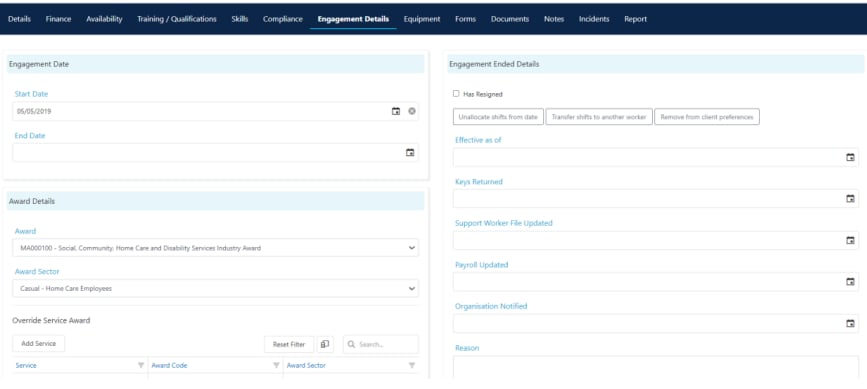 Key fields on this tab:
| Field | Description |
| -------------- | ------------------------------------------------------------------------------------------------------ |
| **Current** | Tick this box if the worker is currently active. Unticking removes the worker from rostering selection |
| **Start Date** | The date the worker commenced employment |
| **End Date** | The date the worker's employment ended (if applicable) |
To make sure a worker who is no longer current does not appear in rostering selection, untick the **Current** box in the worker profile and click **Save**.
## Award details
Select the award the worker is on from the **Award Details** section. This links the worker to the correct pay conditions for your organisation.
## Pay rate overrides
Use the **Override Service Pay Level** section (under **Award Details**) to set service-specific pay rate overrides. This is useful when a worker is typically on one pay rate level but moves to a different level for specific services.
Key fields on this tab:
| Field | Description |
| -------------- | ------------------------------------------------------------------------------------------------------ |
| **Current** | Tick this box if the worker is currently active. Unticking removes the worker from rostering selection |
| **Start Date** | The date the worker commenced employment |
| **End Date** | The date the worker's employment ended (if applicable) |
To make sure a worker who is no longer current does not appear in rostering selection, untick the **Current** box in the worker profile and click **Save**.
## Award details
Select the award the worker is on from the **Award Details** section. This links the worker to the correct pay conditions for your organisation.
## Pay rate overrides
Use the **Override Service Pay Level** section (under **Award Details**) to set service-specific pay rate overrides. This is useful when a worker is typically on one pay rate level but moves to a different level for specific services.
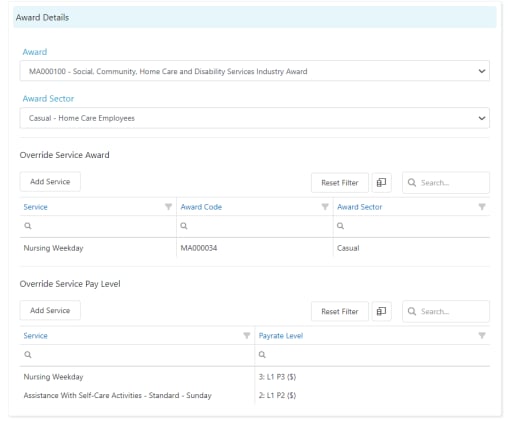 To set up an override:
1. Click **Add Service** in the **Override Service Pay Level** section
2. Select the service
3. Choose the pay rate level that applies when the worker delivers that service
For example, if a worker is typically on pay rate level 1 (set in the **Finance** tab) but moves to level 2 or 3 for certain services, configure those overrides here.
## Running into issues?
See [Worker management troubleshooting](/troubleshooting/general) for common errors and fixes.
## Related articles
Configure bank details and pay rate levels
Steps to offboard a worker from Visualcare
Set up a new worker in Visualcare
To set up an override:
1. Click **Add Service** in the **Override Service Pay Level** section
2. Select the service
3. Choose the pay rate level that applies when the worker delivers that service
For example, if a worker is typically on pay rate level 1 (set in the **Finance** tab) but moves to level 2 or 3 for certain services, configure those overrides here.
## Running into issues?
See [Worker management troubleshooting](/troubleshooting/general) for common errors and fixes.
## Related articles
Configure bank details and pay rate levels
Steps to offboard a worker from Visualcare
Set up a new worker in Visualcare