> ## Documentation Index
> Fetch the complete documentation index at: https://support.visualcare.com.au/llms.txt
> Use this file to discover all available pages before exploring further.
# Suspending and deleting users
> How to disable or suspend user accounts in Visualcare
When a user no longer needs access to Visualcare, you can either disable their account (temporary) or suspend it (permanent). Both options are managed from the **Users** page under the **cog** icon in the top menu bar.
## Disabling a user
Disabling prevents a user from logging in while keeping their account in the user list. Use this for temporary situations like leave or a role change.
1. Select the user from the list on the left
2. Tick the **Prevent user login** checkbox
3. Click **Save**
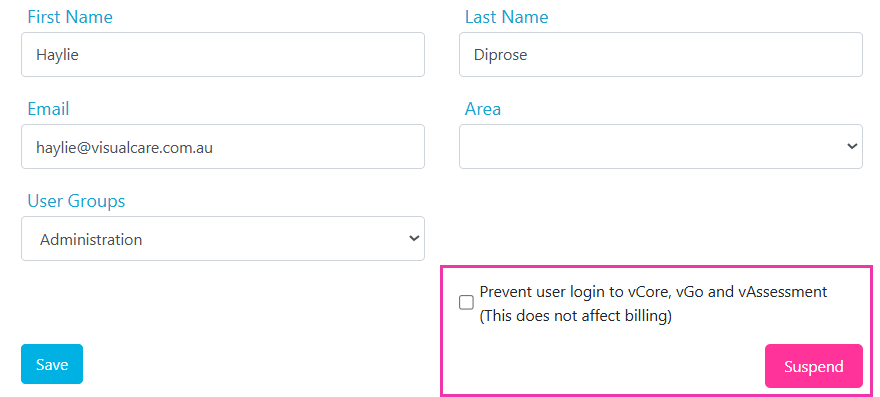 This stops the user from logging in to VCore, vGo, and vAssessment.
To reinstate the user, untick the checkbox and save.
Disabled users remain in the user list and continue to be included in the billing cycle. If you want to stop billing for a user, you need to suspend them instead.
## Suspending a user
Suspending removes the user from the user list entirely. Use this when someone has permanently left your organisation.
1. Select the user from the list on the left
2. Click **Suspend**
3. In the confirmation popup, click **Suspend** again to confirm
This stops the user from logging in to VCore, vGo, and vAssessment.
To reinstate the user, untick the checkbox and save.
Disabled users remain in the user list and continue to be included in the billing cycle. If you want to stop billing for a user, you need to suspend them instead.
## Suspending a user
Suspending removes the user from the user list entirely. Use this when someone has permanently left your organisation.
1. Select the user from the list on the left
2. Click **Suspend**
3. In the confirmation popup, click **Suspend** again to confirm
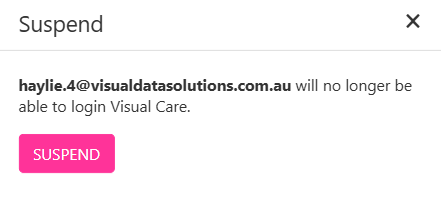 Administration users cannot reinstate a suspended user. If a suspended user needs to be reinstated, contact the Visualcare helpdesk at [support@visualcare.com.au](mailto:support@visualcare.com.au).
## Which method to use
| Situation | Method | Reversible |
| ------------------------------------------ | -------------------------------- | --------------------------------- |
| User is on leave or temporarily reassigned | **Disable** (Prevent user login) | Yes, untick and save |
| User has left the organisation permanently | **Suspend** | No, contact helpdesk to reinstate |
| You want to stop billing for the user | **Suspend** | No, contact helpdesk to reinstate |
## Running into issues?
See [Login and access troubleshooting](/troubleshooting/login-and-access) for common login and permission problems.
## Related articles
Add new user accounts and assign groups
Configure permissions for user groups
Reset a forgotten password or re-enable 2FA
Administration users cannot reinstate a suspended user. If a suspended user needs to be reinstated, contact the Visualcare helpdesk at [support@visualcare.com.au](mailto:support@visualcare.com.au).
## Which method to use
| Situation | Method | Reversible |
| ------------------------------------------ | -------------------------------- | --------------------------------- |
| User is on leave or temporarily reassigned | **Disable** (Prevent user login) | Yes, untick and save |
| User has left the organisation permanently | **Suspend** | No, contact helpdesk to reinstate |
| You want to stop billing for the user | **Suspend** | No, contact helpdesk to reinstate |
## Running into issues?
See [Login and access troubleshooting](/troubleshooting/login-and-access) for common login and permission problems.
## Related articles
Add new user accounts and assign groups
Configure permissions for user groups
Reset a forgotten password or re-enable 2FA