> ## Documentation Index
> Fetch the complete documentation index at: https://support.visualcare.com.au/llms.txt
> Use this file to discover all available pages before exploring further.
# Support at Home financials
> Manage HCP and SAH budgets, statements, financial exports, and monthly participant statements in Visualcare
This article covers the financial management tools for Home Care Package (HCP) and Support at Home (SAH) clients, including the HCP statement calculator, bulk operations, monthly SAH statements, and data exports.
## HCP tab on the client profile
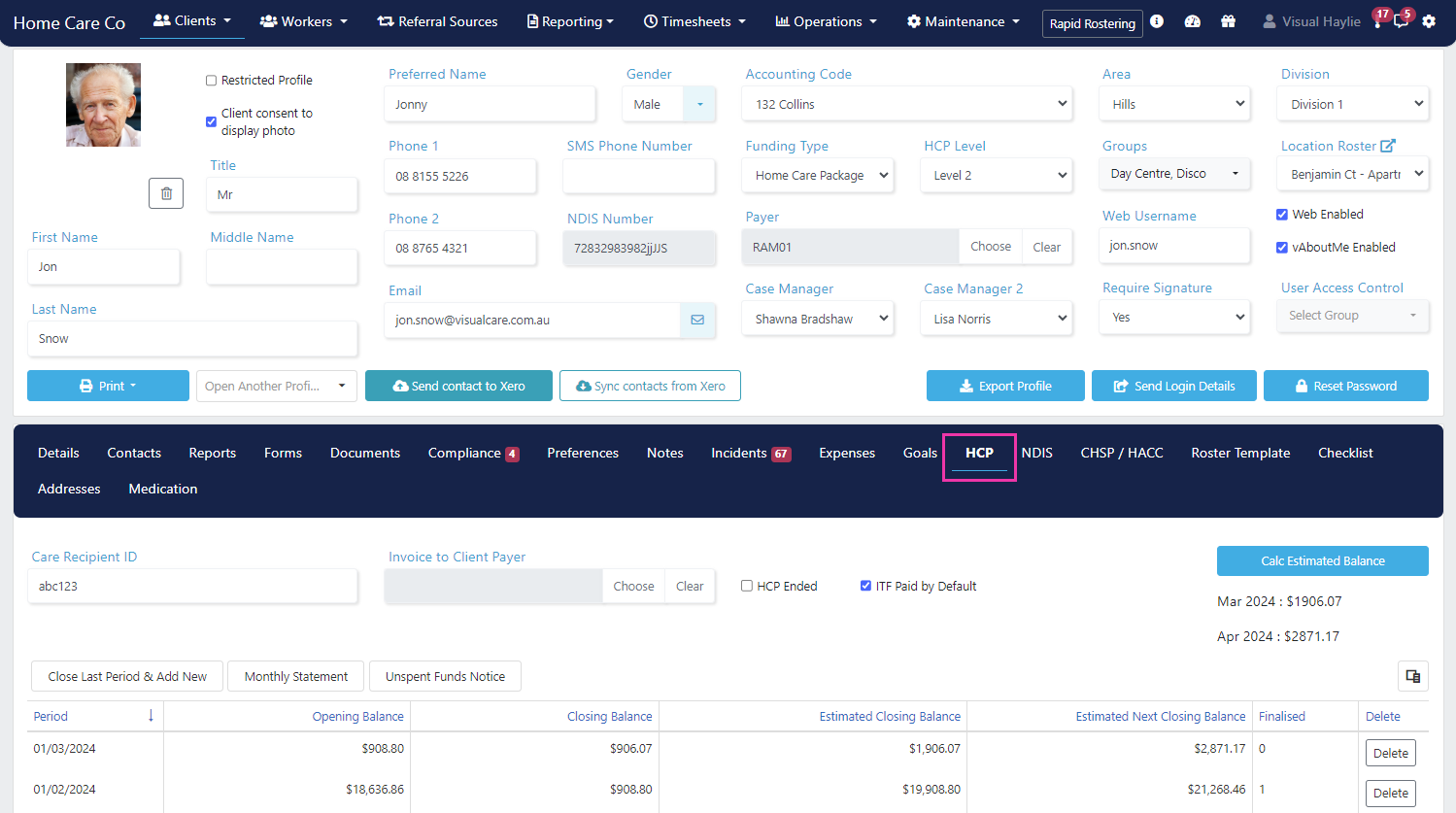
The **HCP** tab contains all HCP statements for a client, plus configuration items for calculations and claim files.
Select a client and open **Client Profile** → **HCP** tab.
 ### Client HCP setup
At the top of the HCP tab, configure these settings for the selected client. Click **Save** after making changes.
### Client HCP setup
At the top of the HCP tab, configure these settings for the selected client. Click **Save** after making changes.
 | Field | Description |
| --------------------------- | -------------------------------------------------------------------------------------------------------------------------------- |
| **Care Recipient ID** | The client's Care Recipient ID, which flows into the export file for claiming |
| **Invoice to Client Payer** | If someone other than the client is invoiced for HCP items (for example, BDF, ITF), select a payer using the **Choose** function |
| **HCP Ended** | Prevents new HCP periods from being created once the client is no longer receiving HCP services |
| **ITF Paid by Default** | Defaults the Income Tested Care Fee to paid status. This setting is overridable per period |
If **Invoice to Client Payer** is not set, the client's **Accounting Code** on the profile page is used in the export for invoicing.
### Creating the first HCP statement
Click **Create** to start a new Home Care Package statement.
| Field | Description |
| --------------------------- | -------------------------------------------------------------------------------------------------------------------------------- |
| **Care Recipient ID** | The client's Care Recipient ID, which flows into the export file for claiming |
| **Invoice to Client Payer** | If someone other than the client is invoiced for HCP items (for example, BDF, ITF), select a payer using the **Choose** function |
| **HCP Ended** | Prevents new HCP periods from being created once the client is no longer receiving HCP services |
| **ITF Paid by Default** | Defaults the Income Tested Care Fee to paid status. This setting is overridable per period |
If **Invoice to Client Payer** is not set, the client's **Accounting Code** on the profile page is used in the export for invoicing.
### Creating the first HCP statement
Click **Create** to start a new Home Care Package statement.
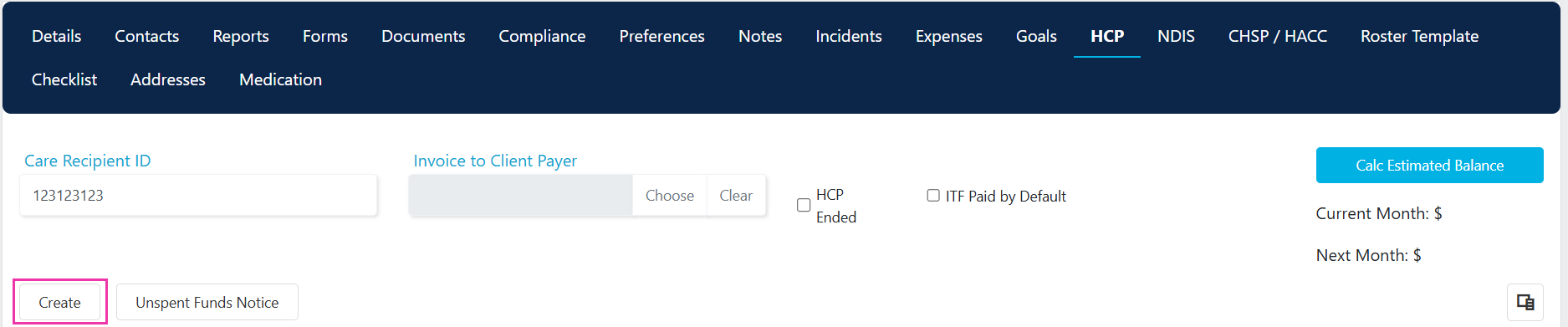 A pop-up window opens where you enter the package start and opening balance details.
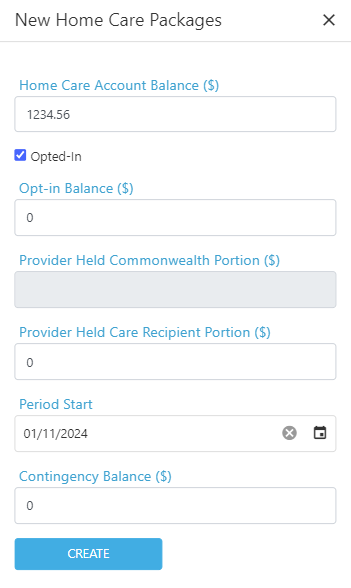 | Field | Description |
| ---------------------------------------- | ----------------------------------------------------------------------------------------------------------------------------------------------------------------- |
| **Home Care Account (HCA) Balance** | Enter the HCA balance as at the period start date per the Services Australia statement. Leave blank for a new client |
| **Opted-In** | Tick for new clients or existing clients who were opted in as at 1 September 2021. Enter any remaining opt-in balance |
| **Provider Held Care Recipient Portion** | Enter the balance as at the period start date, if applicable |
| **Period Start Date** | For new clients, this is the date you became their provider. For existing clients, this is the first day of the month after the last Services Australia statement |
| **Contingency Balance** | Enter the contingency balance if applicable |
Click **Create** to generate the first HCP statement period.
For opt-out clients, untick the **Opted-In** box and enter the **Provider Held Commonwealth Portion** balance instead.
### Managing statement periods
Once a period is created, it appears in the table on the HCP tab.
| Field | Description |
| ---------------------------------------- | ----------------------------------------------------------------------------------------------------------------------------------------------------------------- |
| **Home Care Account (HCA) Balance** | Enter the HCA balance as at the period start date per the Services Australia statement. Leave blank for a new client |
| **Opted-In** | Tick for new clients or existing clients who were opted in as at 1 September 2021. Enter any remaining opt-in balance |
| **Provider Held Care Recipient Portion** | Enter the balance as at the period start date, if applicable |
| **Period Start Date** | For new clients, this is the date you became their provider. For existing clients, this is the first day of the month after the last Services Australia statement |
| **Contingency Balance** | Enter the contingency balance if applicable |
Click **Create** to generate the first HCP statement period.
For opt-out clients, untick the **Opted-In** box and enter the **Provider Held Commonwealth Portion** balance instead.
### Managing statement periods
Once a period is created, it appears in the table on the HCP tab.
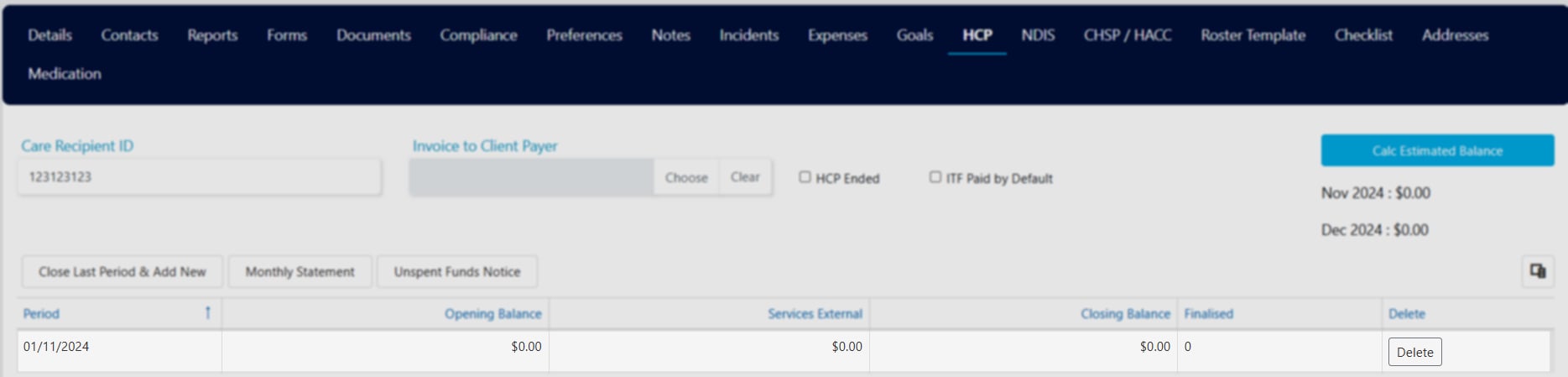 * **Open to edit** - double-click a period to open the calculation page
* **Close and roll over** - click **Close Last Period & Add New** once the previous period is calculated
* **Delete** - remove a period or multiple periods if needed
Deleting a previous period also removes all following statement periods. Use this feature with caution.
## HCP statement calculator
The calculator is split into several sections for managing the full financial picture of a client's HCP.
### Package details
* **Open to edit** - double-click a period to open the calculation page
* **Close and roll over** - click **Close Last Period & Add New** once the previous period is calculated
* **Delete** - remove a period or multiple periods if needed
Deleting a previous period also removes all following statement periods. Use this feature with caution.
## HCP statement calculator
The calculator is split into several sections for managing the full financial picture of a client's HCP.
### Package details
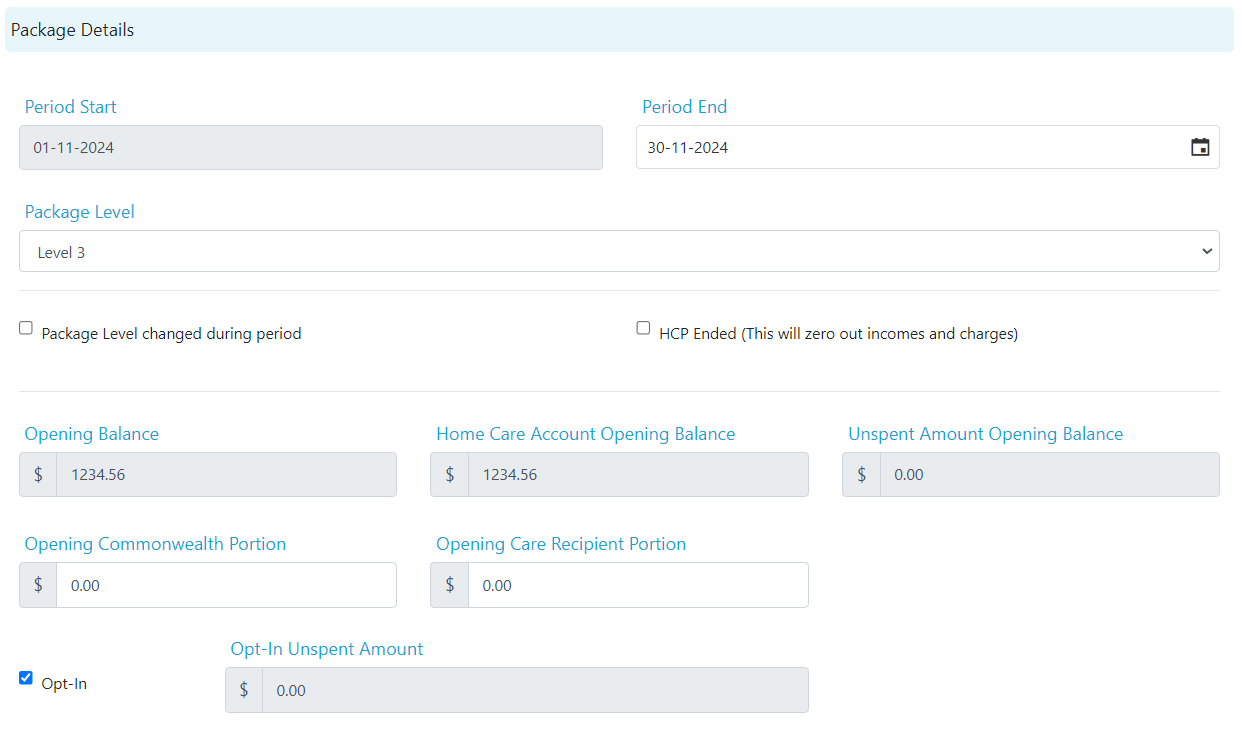 * **Period Start** rolls over from the previous period or initial start date
* **Period End** defaults to end of month (editable for partial month statements)
* **Package Level** flows from the client profile or is selectable from the drop-down
* **Opening Balance** is the total of HCA, Unspent Amount, Commonwealth Portion, and Care Recipient Portion
### Package income
The daily government subsidy is pre-filled based on the client's package level. Use the **Override** tick box to adjust.
* **Period Start** rolls over from the previous period or initial start date
* **Period End** defaults to end of month (editable for partial month statements)
* **Package Level** flows from the client profile or is selectable from the drop-down
* **Opening Balance** is the total of HCA, Unspent Amount, Commonwealth Portion, and Care Recipient Portion
### Package income
The daily government subsidy is pre-filled based on the client's package level. Use the **Override** tick box to adjust.
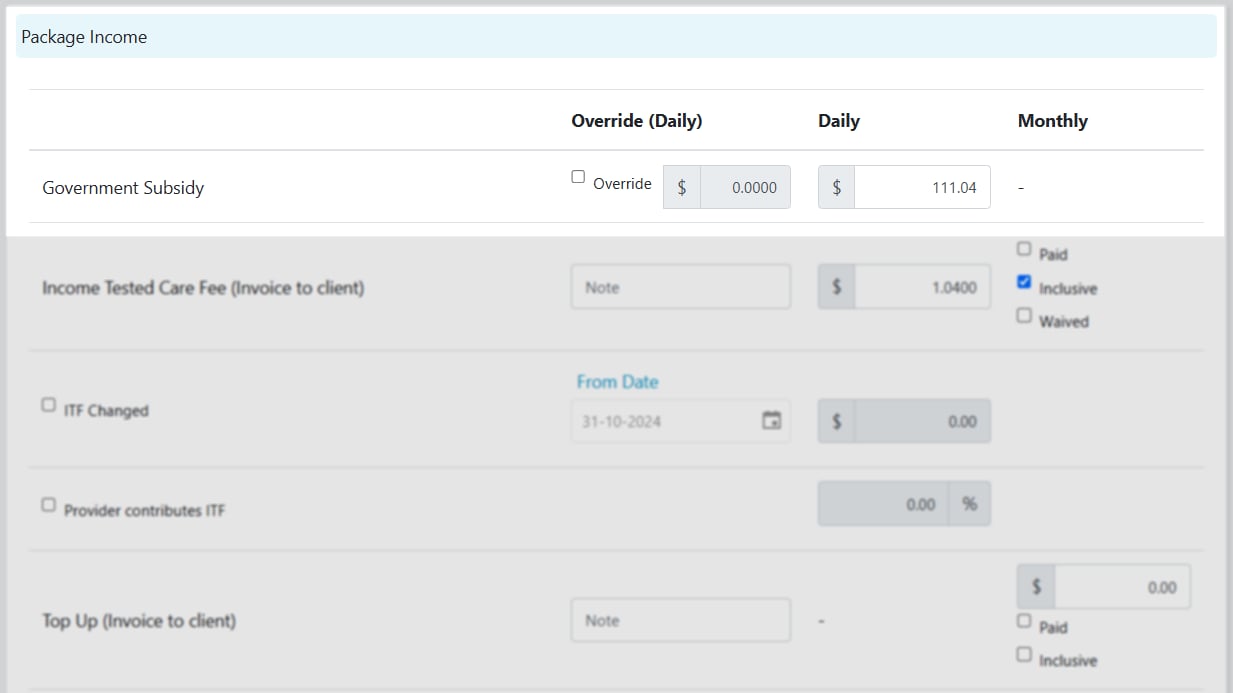 Enter the daily ITF based on government advice. The amount determines the split between government and client contributions.
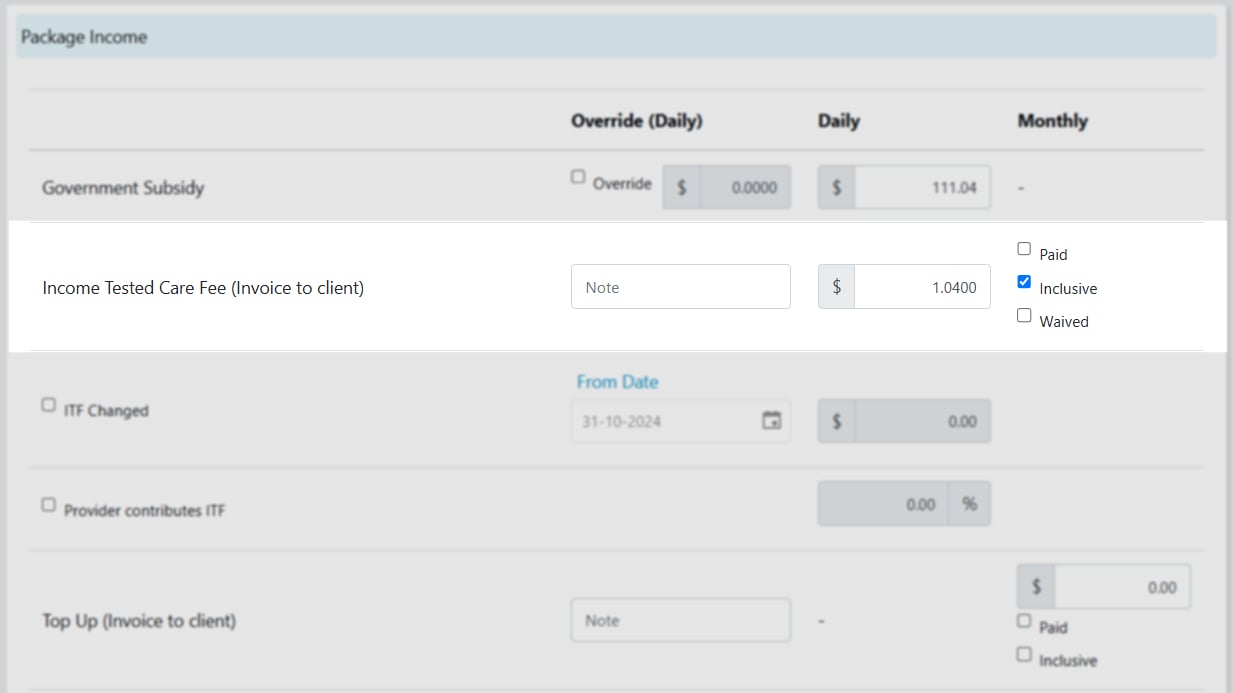 Options include:
* **Paid** - already paid by the client, excluded from invoice but included in calculations
* **Inclusive** - included in package income and calculations (this box must be ticked if an ITF amount exists)
* **Waived** - excluded from all calculations
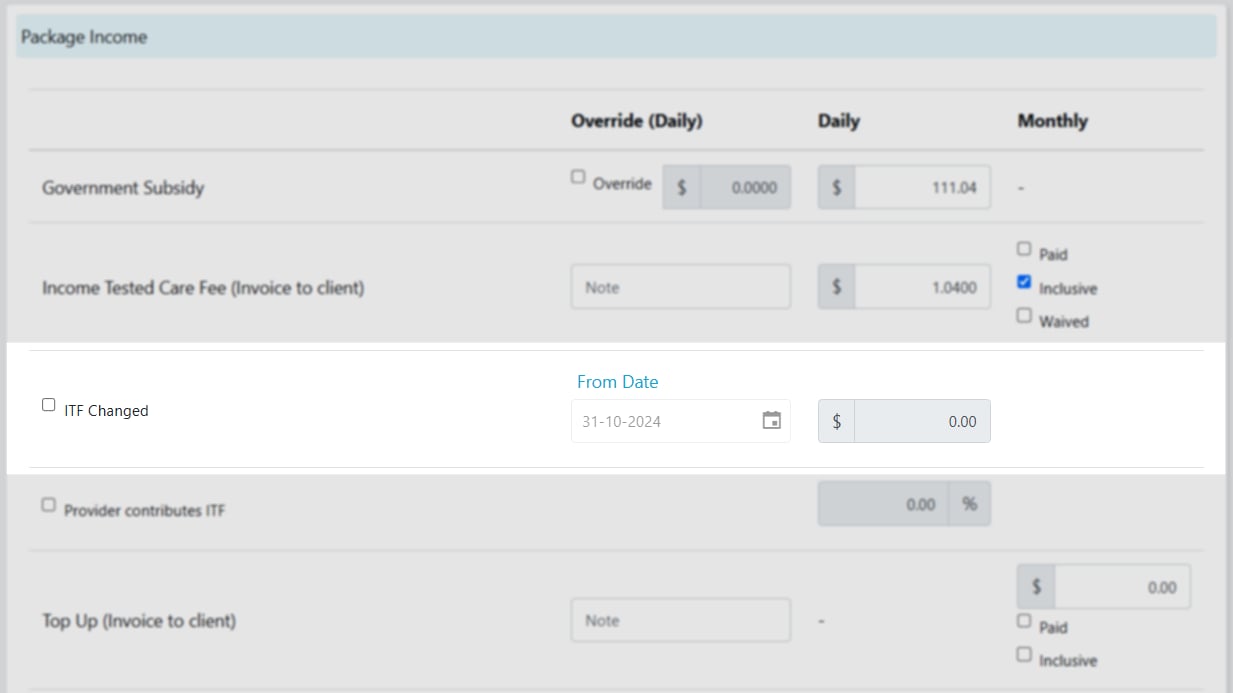
If the ITF changes mid-month, tick **ITF Changed**, select the date, and enter the new amount.
Options include:
* **Paid** - already paid by the client, excluded from invoice but included in calculations
* **Inclusive** - included in package income and calculations (this box must be ticked if an ITF amount exists)
* **Waived** - excluded from all calculations
If the ITF changes mid-month, tick **ITF Changed**, select the date, and enter the new amount.
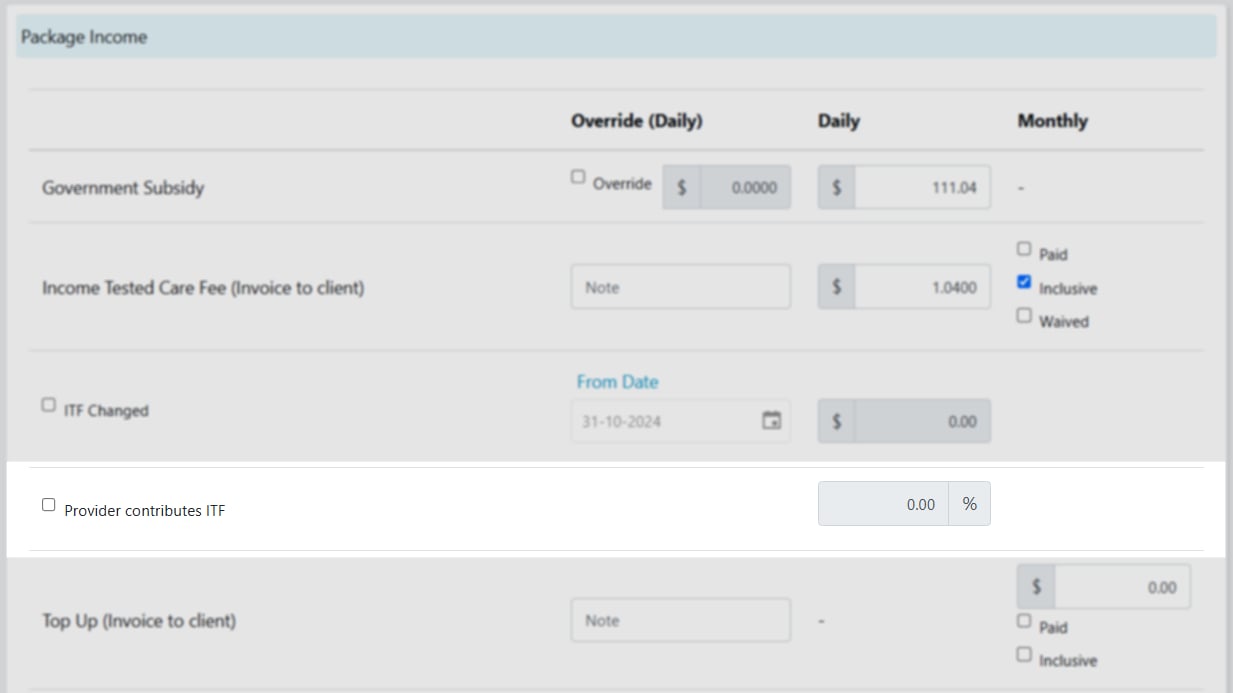
 If you're paying all or part of the ITF for the client, tick **Provider contributes ITF** and enter a percentage.
 Monthly top-up allows pre-arranged additional client funds to cover care not covered by government funding. Enter a dollar amount and optional note.
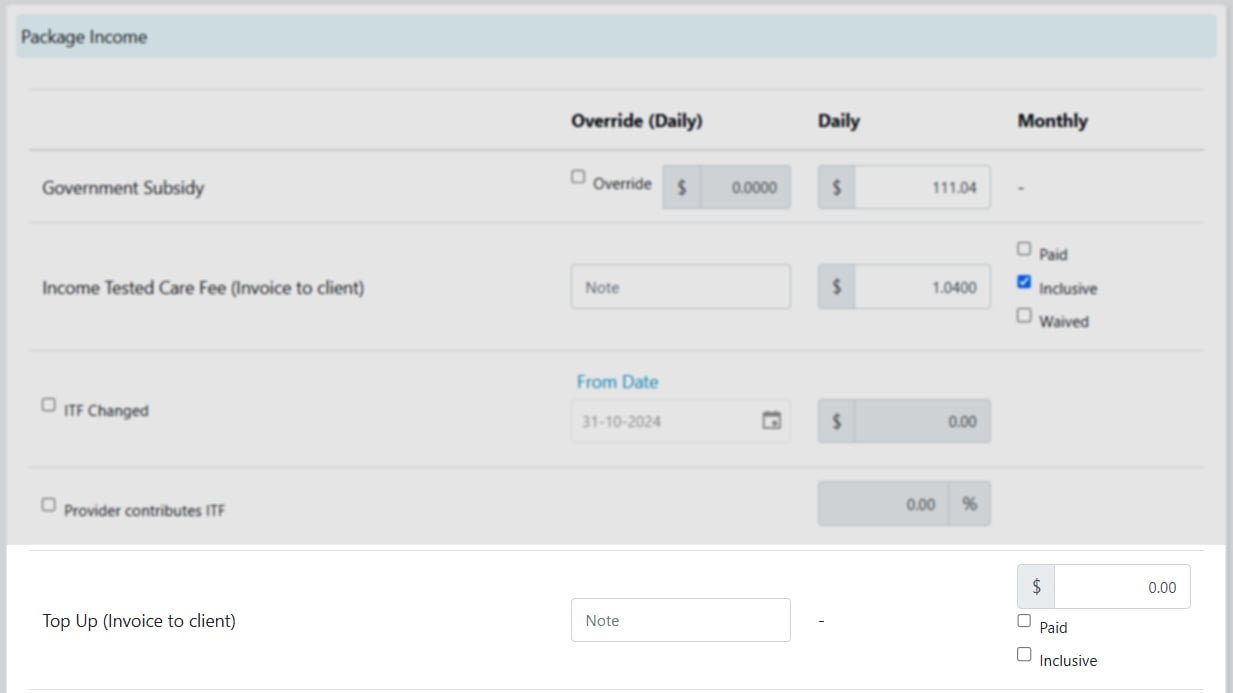 * **Paid** - already received, excluded from invoice
* **Inclusive** - yet to be received, included in invoice
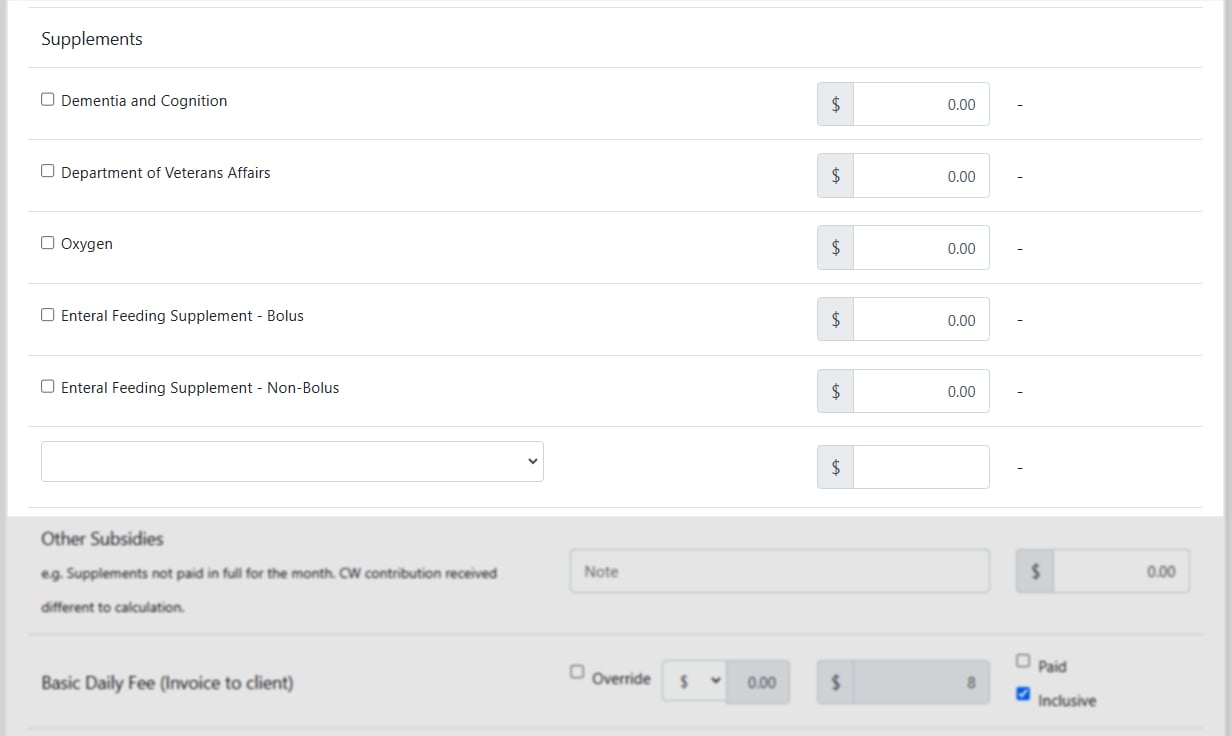
Select supplements using tick boxes or from the drop-down. Values pre-fill based on the package level.
* **Paid** - already received, excluded from invoice
* **Inclusive** - yet to be received, included in invoice
Select supplements using tick boxes or from the drop-down. Values pre-fill based on the package level.
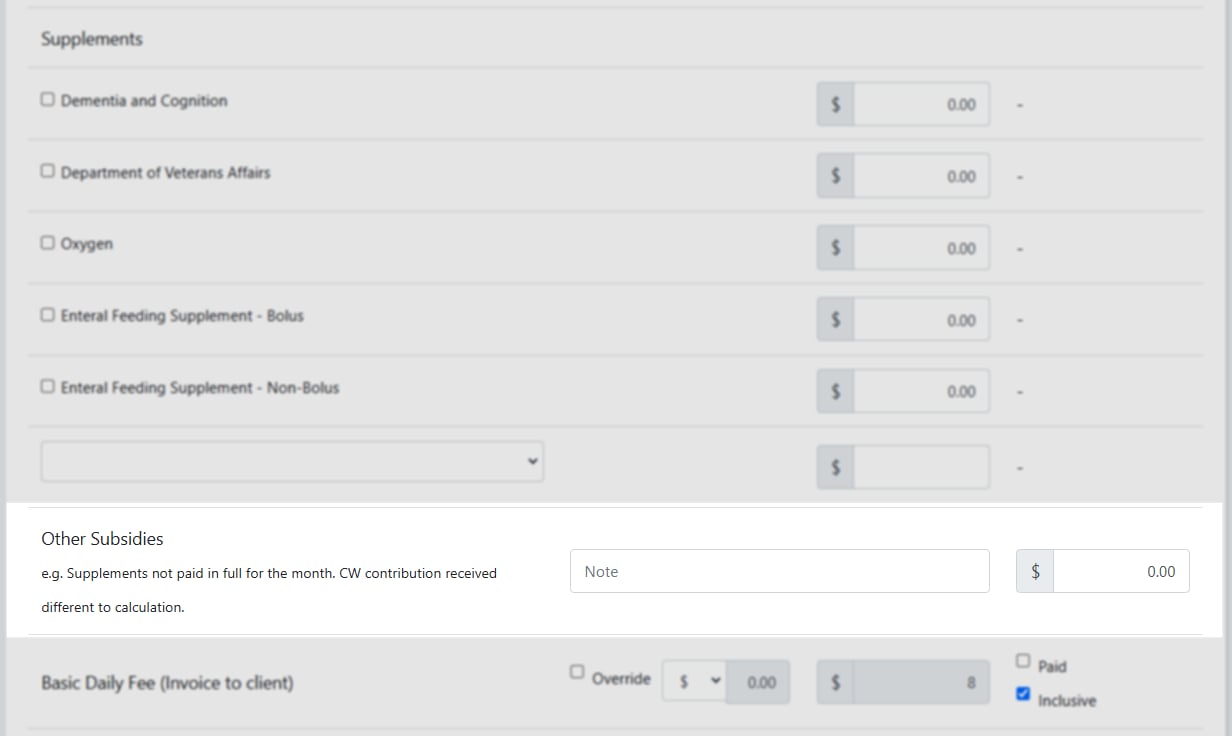
 Use **Other Subsidies** for subsidy adjustments, such as partial supplement payments or differences in government contribution.
 Flows from **Settings** → **Finance** → **Home Care Packages**. Override on a per-client basis using a dollar amount or percentage.
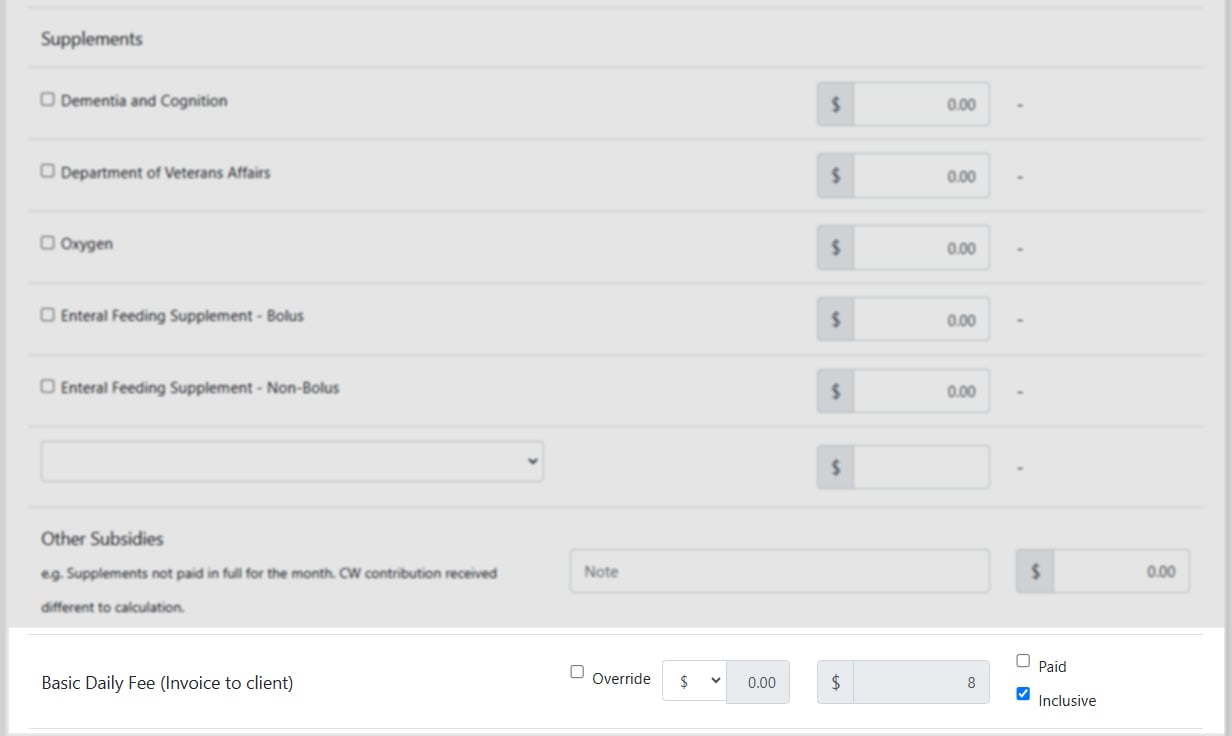 * **Paid** - already received, excluded from invoice
* **Inclusive** - yet to be received, included in invoice (must be ticked for correct calculation)
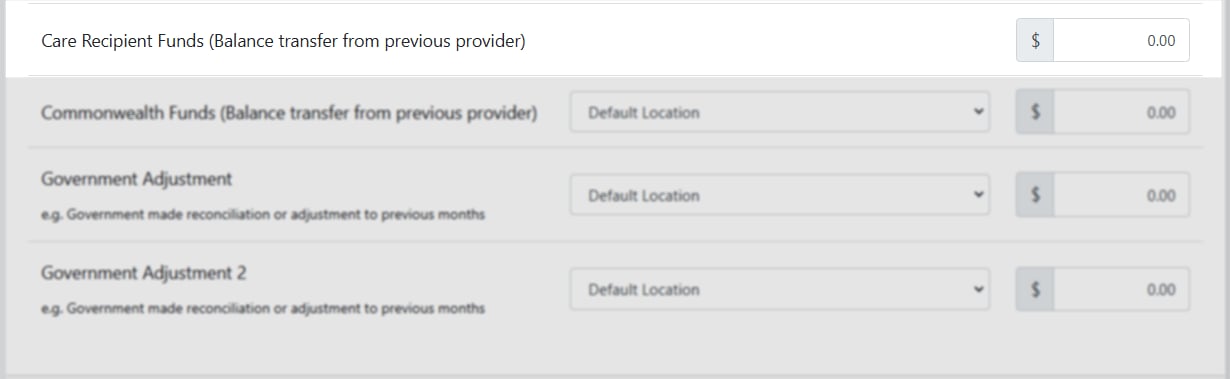
**Care Recipient Funds** - add client-contributed funds transferred from a previous provider.
* **Paid** - already received, excluded from invoice
* **Inclusive** - yet to be received, included in invoice (must be ticked for correct calculation)
**Care Recipient Funds** - add client-contributed funds transferred from a previous provider.
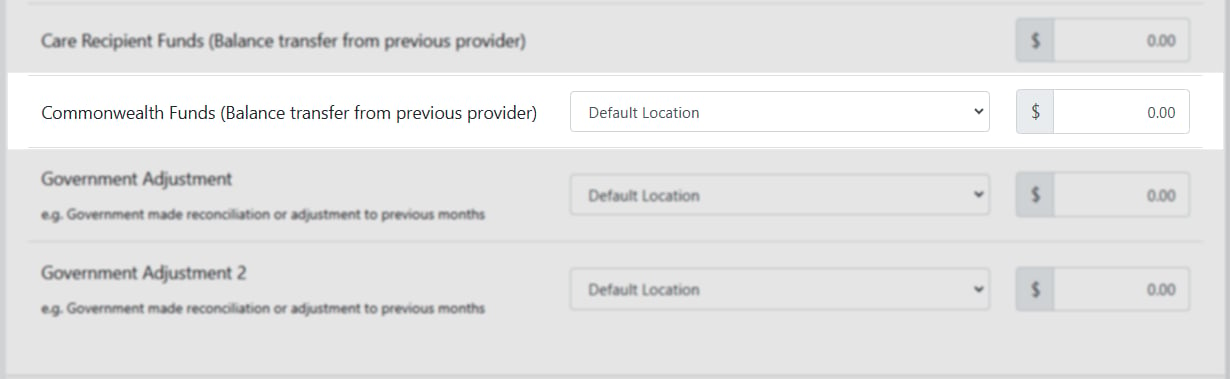
 **Commonwealth Funds** - add government-contributed funds from a previous provider. Use the drop-down to select the balance the funds were transferred into.
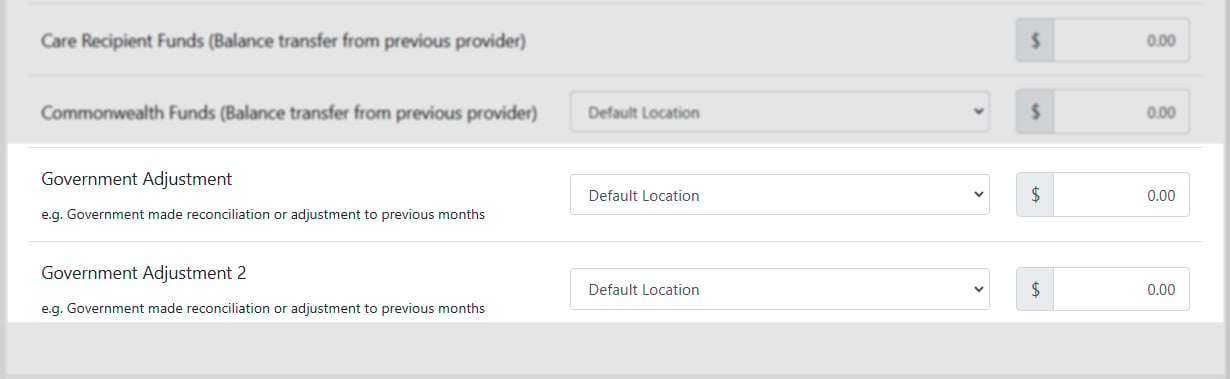
 **Government Adjustment 1 and 2** - reflect any government adjustments to previous periods or the current statement.
 ### Package charges
**Package Management Fee** - flows from **Settings** → **Finance** → **Home Care Packages**. Calculated as a dollar amount or percentage of total income. Tick **Override** to adjust per client.
### Package charges
**Package Management Fee** - flows from **Settings** → **Finance** → **Home Care Packages**. Calculated as a dollar amount or percentage of total income. Tick **Override** to adjust per client.
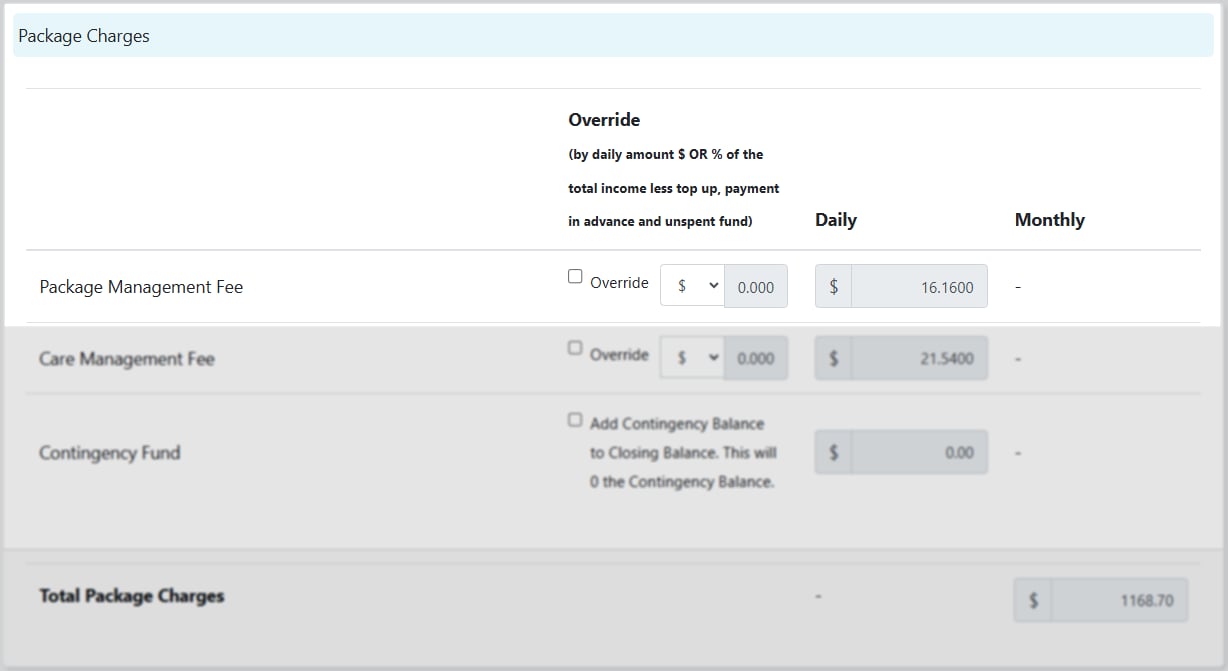 **Care Management Fee** - same structure. Tick **Override** to adjust per client.
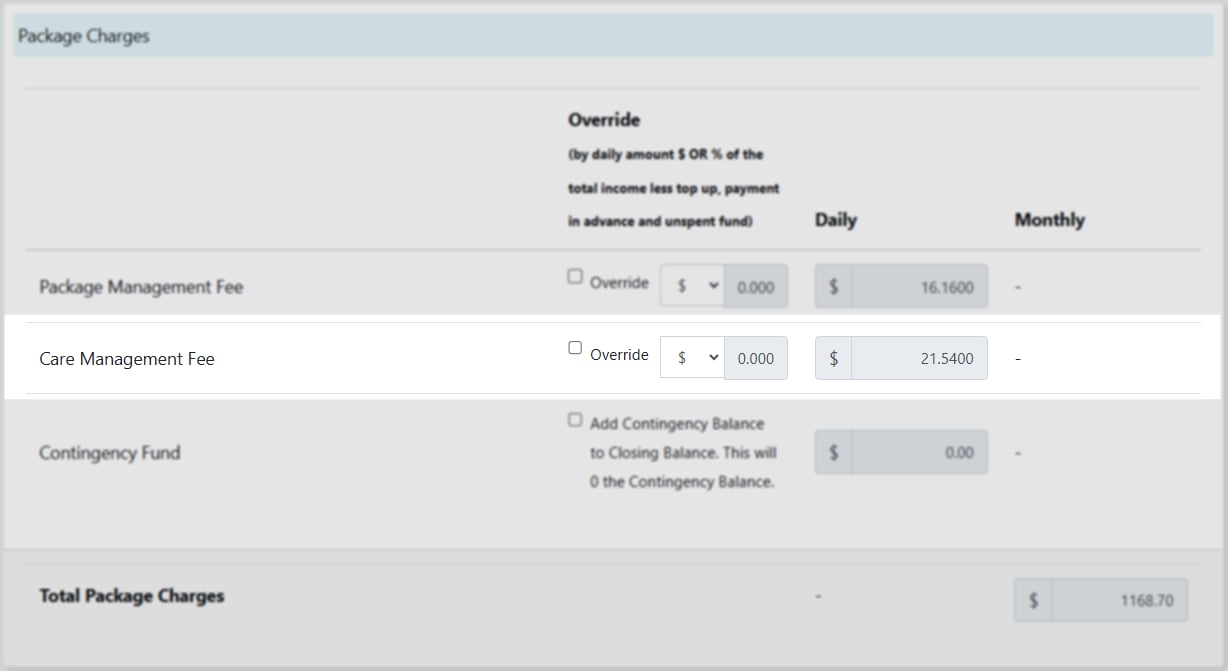 Both fees are capped based on government requirements.
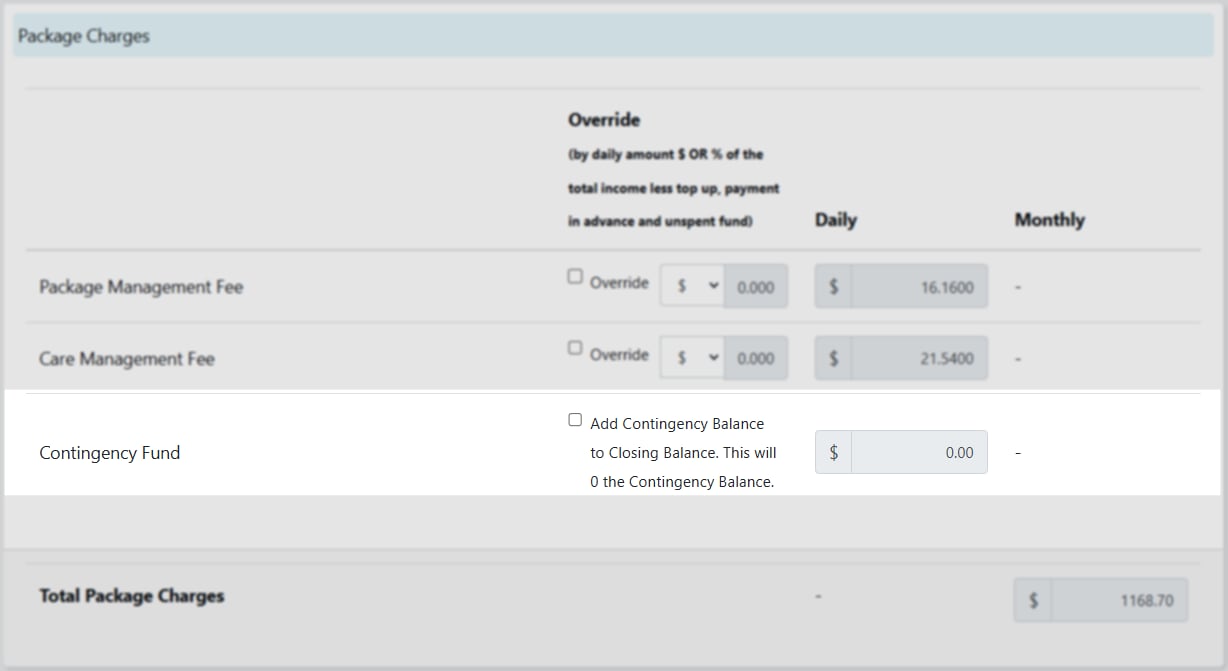
Flows from HCP settings as a dollar amount up to a maximum balance. To absorb the contingency and reset it to zero, tick the box beside the balance.
Both fees are capped based on government requirements.
Flows from HCP settings as a dollar amount up to a maximum balance. To absorb the contingency and reset it to zero, tick the box beside the balance.
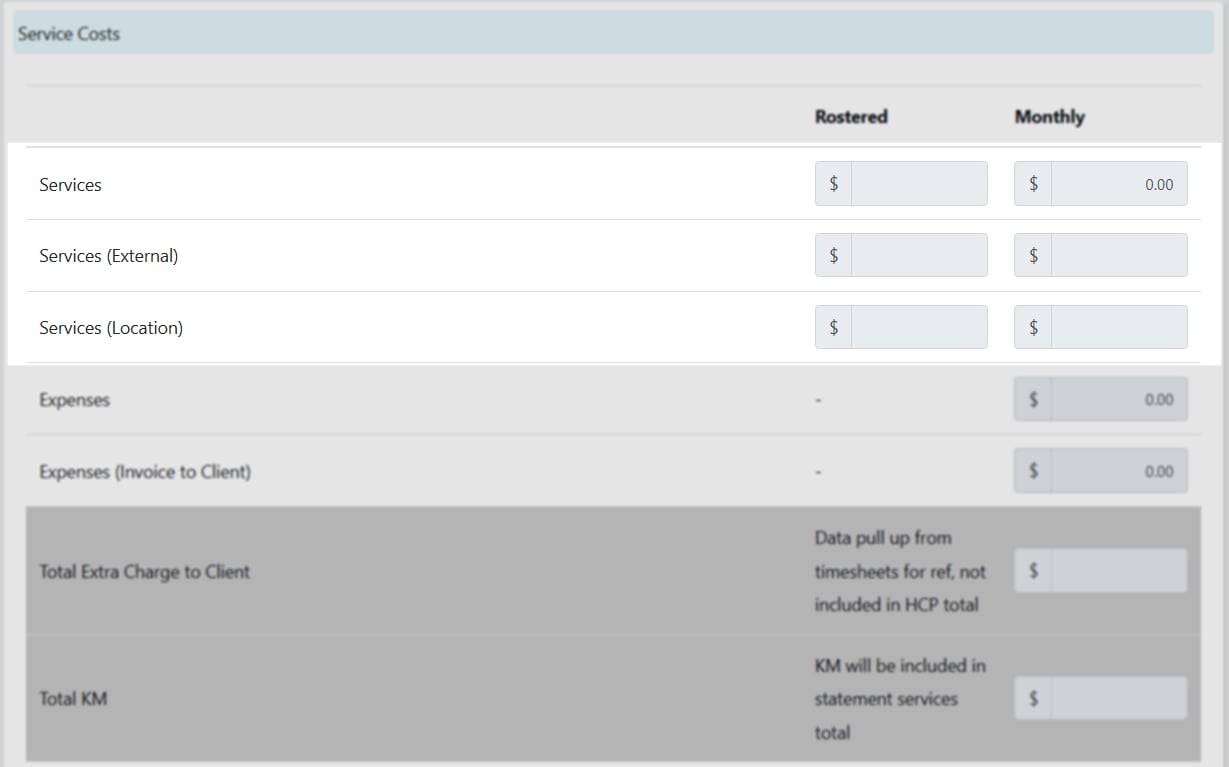
 ### Service costs
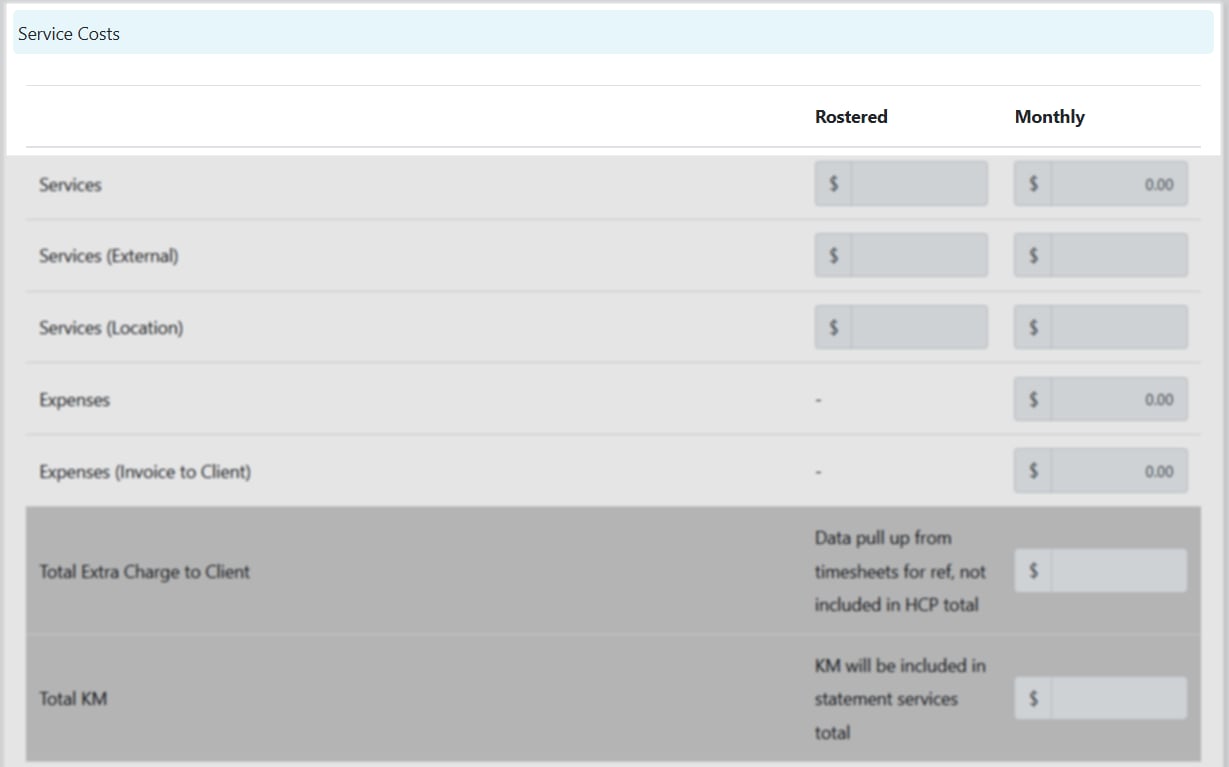 | Column | Description |
| ------------ | -------------------------------------------------------------------------------------------- |
| **Rostered** | HCP service items on the client roster for the month, including unconfirmed items |
| **Monthly** | Services confirmed or completed and sent to timesheets (these appear on the final statement) |
Service types include:
* **Services** - standard worker HCP services
* **Services (External)** - services from broker or supplier workers (for example, third-party gardeners)
* **Services (Location)** - services from location rosters (group settings)
| Column | Description |
| ------------ | -------------------------------------------------------------------------------------------- |
| **Rostered** | HCP service items on the client roster for the month, including unconfirmed items |
| **Monthly** | Services confirmed or completed and sent to timesheets (these appear on the final statement) |
Service types include:
* **Services** - standard worker HCP services
* **Services (External)** - services from broker or supplier workers (for example, third-party gardeners)
* **Services (Location)** - services from location rosters (group settings)
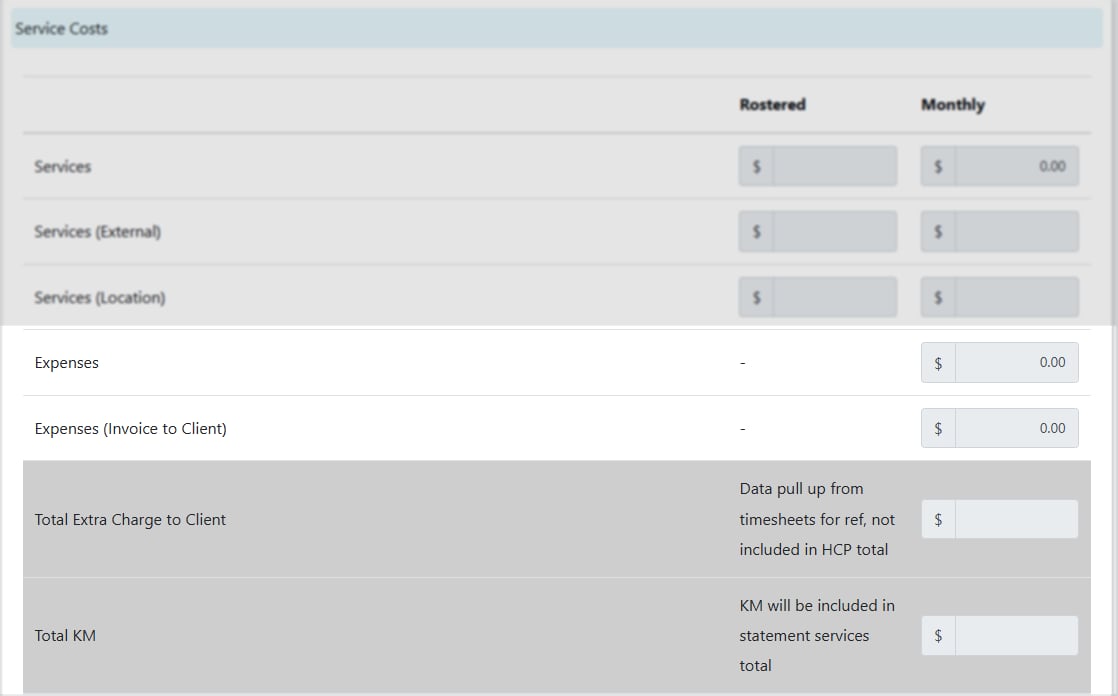
 Additional items include expenses, expenses invoiced to the client, extra charges from timesheets, and total kilometres.
 ### Totals and closing balance
The totals section shows the movement through the package for the period.
### Totals and closing balance
The totals section shows the movement through the package for the period.
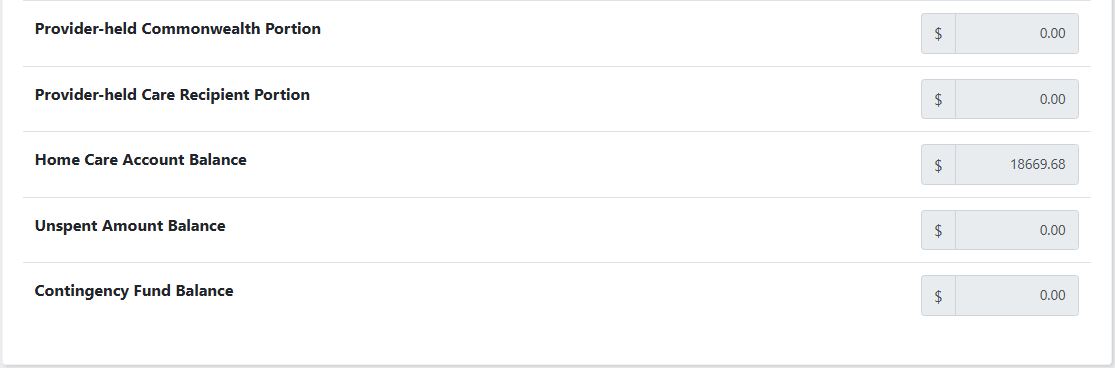
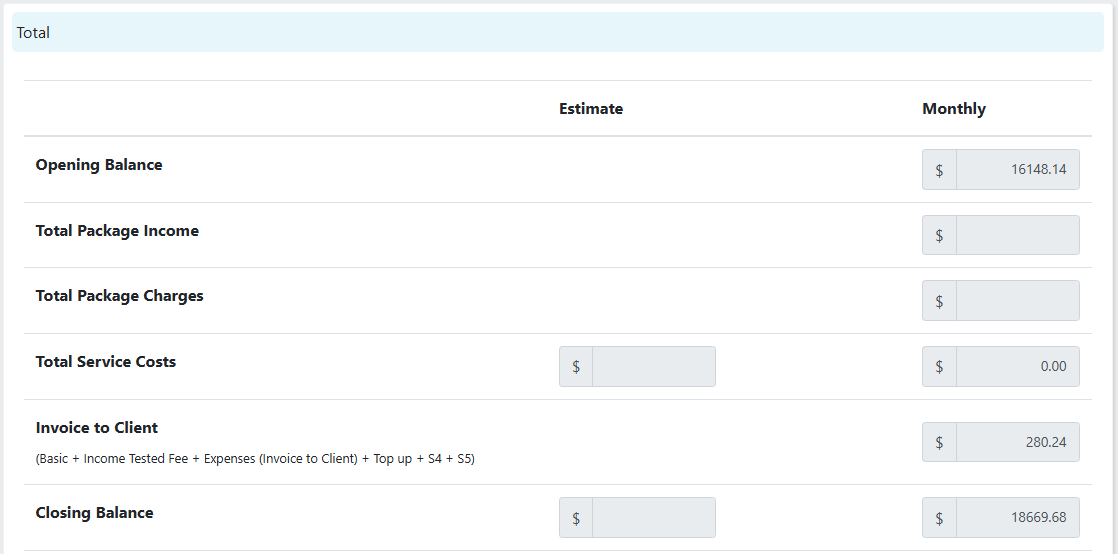 The closing balance is broken into:
* **Provider-held Commonwealth Portion** - government funds held by the provider (opt-out clients only)
* **Provider-held Care Recipient Portion** - client-contributed funds held by the provider
* **Home Care Account Balance** - tracks government fund movements, aligning with the Services Australia statement
* **Unspent Amount Balance** - government funds not yet spent on services (opt-in clients only)
The closing balance is broken into:
* **Provider-held Commonwealth Portion** - government funds held by the provider (opt-out clients only)
* **Provider-held Care Recipient Portion** - client-contributed funds held by the provider
* **Home Care Account Balance** - tracks government fund movements, aligning with the Services Australia statement
* **Unspent Amount Balance** - government funds not yet spent on services (opt-in clients only)
 ### Calculate and generate statements
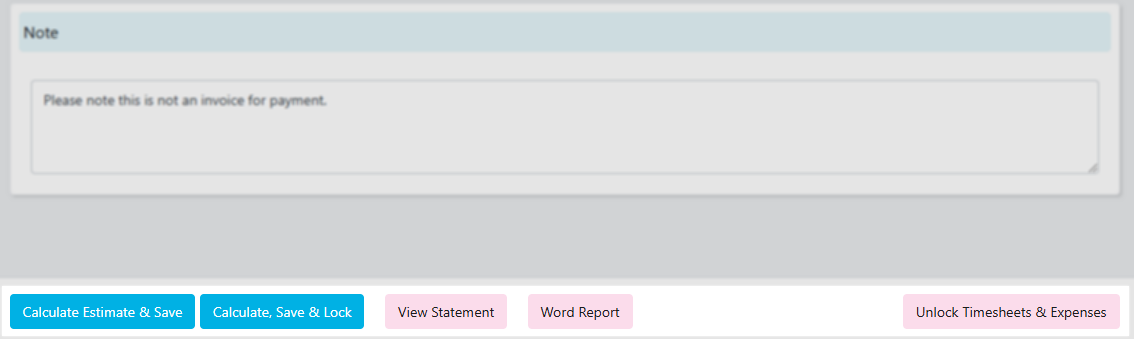 | Action | Description |
| -------------------------------- | --------------------------------------------------------------------------------- |
| **Calculate Estimate & Save** | Updates all fields with an estimated position. Run anytime during the month |
| **Calculate, Save & Lock** | Calculates the final position and locks timesheets and expenses. Run at month end |
| **View Statement** | Opens the system-generated monthly statement in a new tab |
| **Word Report** | Generates a customised Word document statement |
| **Unlock Timesheets & Expenses** | Unlocks locked items so you make changes, then recalculate |
## Bulk HCP operations
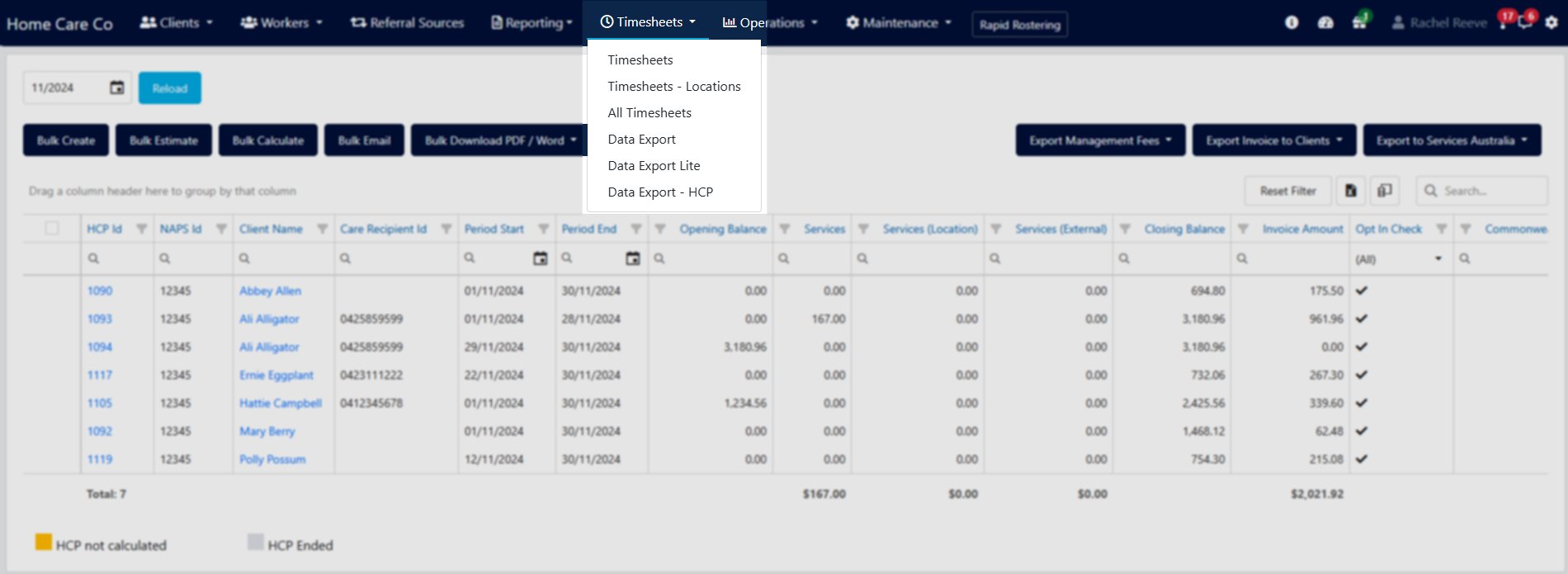
Bulk operations are found in **Timesheets** → **Data Export - HCP**.
| Action | Description |
| -------------------------------- | --------------------------------------------------------------------------------- |
| **Calculate Estimate & Save** | Updates all fields with an estimated position. Run anytime during the month |
| **Calculate, Save & Lock** | Calculates the final position and locks timesheets and expenses. Run at month end |
| **View Statement** | Opens the system-generated monthly statement in a new tab |
| **Word Report** | Generates a customised Word document statement |
| **Unlock Timesheets & Expenses** | Unlocks locked items so you make changes, then recalculate |
## Bulk HCP operations
Bulk operations are found in **Timesheets** → **Data Export - HCP**.
 ### Summary page
The summary page shows all **Calculated** and **Finalised** HCP statements for a selected period. Select a month using the calendar icon and click **Reload**.
### Summary page
The summary page shows all **Calculated** and **Finalised** HCP statements for a selected period. Select a month using the calendar icon and click **Reload**.
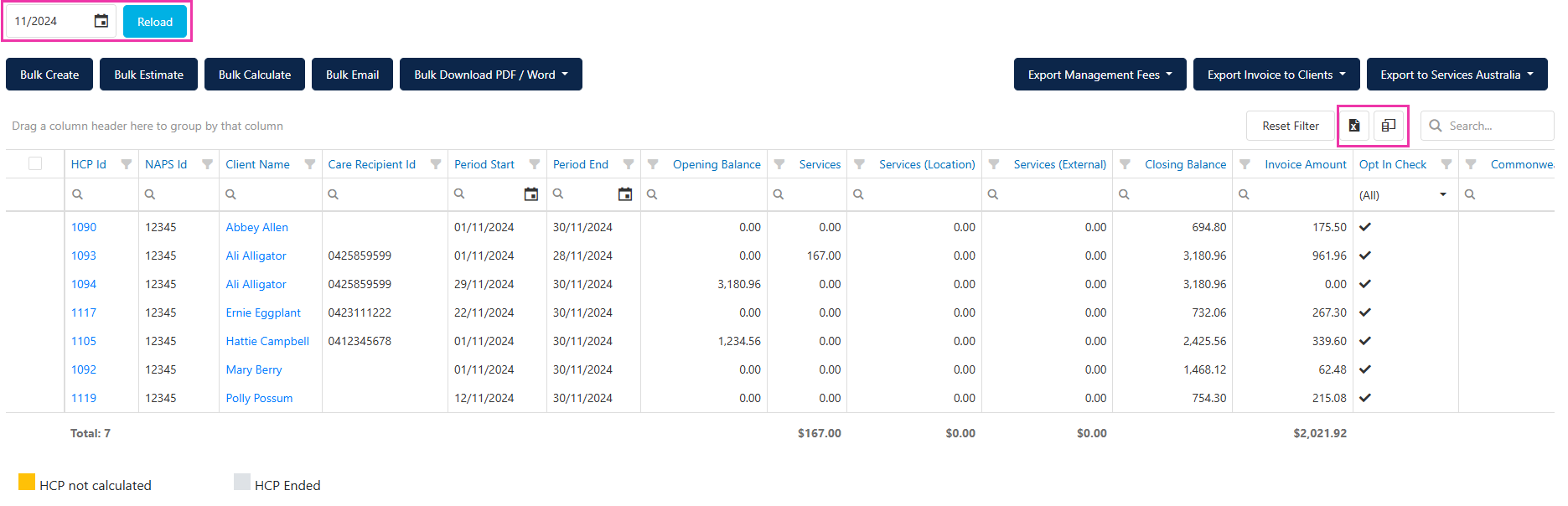 Statement highlighting:
* **Yellow** - not yet calculated
* **Grey** - HCP funding has ended
* **No highlight** - calculated or finalised
### Bulk actions
Statement highlighting:
* **Yellow** - not yet calculated
* **Grey** - HCP funding has ended
* **No highlight** - calculated or finalised
### Bulk actions
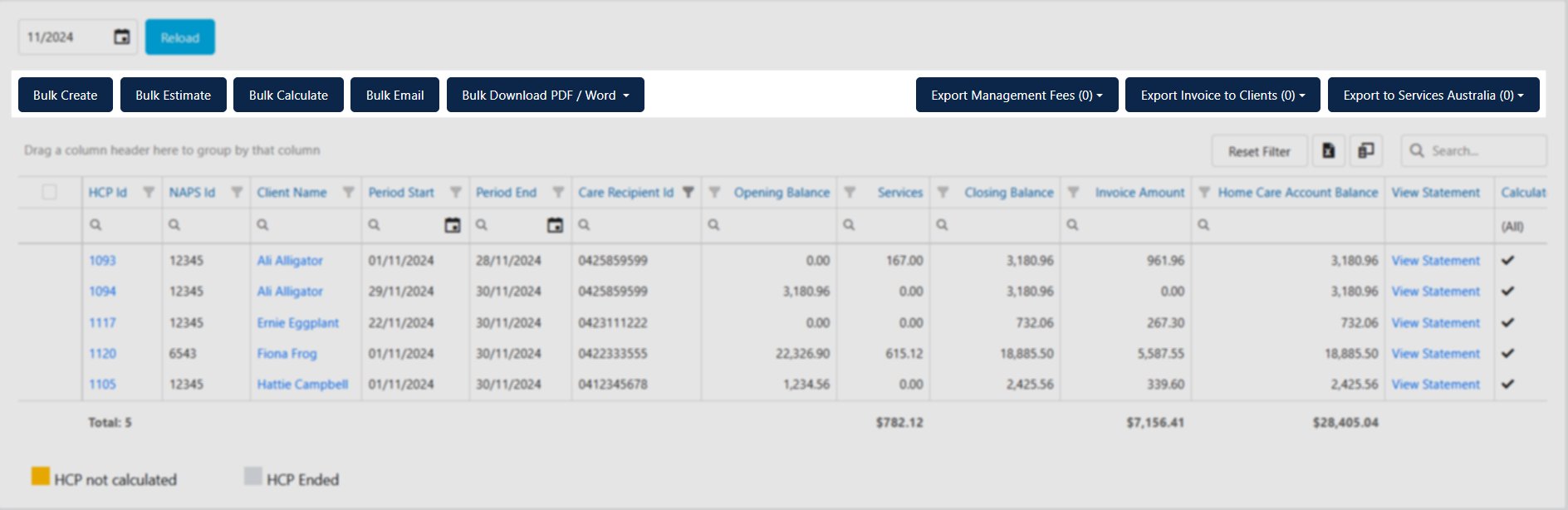 | Action | Description |
| -------------------------------- | ----------------------------------------------------------------- |
| **Bulk Create** | Creates a new period after the current month is finalised |
| **Bulk Estimate** | Updates balances without locking timesheets or expenses |
| **Bulk Calculate** | Updates balances and locks timesheets and expenses for month end |
| **Bulk Email** | Sends statements to clients with email addresses on their profile |
| **Bulk Download PDF / Word** | Produces client statements in PDF or Word format |
| **Export Management Fees** | Exports care and package management fees to your finance system |
| **Export Invoice to Clients** | Exports HCP charges (ITF, BDF, top-ups) to your finance system |
| **Export to Services Australia** | Exports Commonwealth Portion or Bulk Invoice CSV for upload |
1. Select the required month and click **Reload**
2. Tick the clients to calculate
3. Click **Bulk Calculate**
4. Review the summary of successful calculations and any errors
| Action | Description |
| -------------------------------- | ----------------------------------------------------------------- |
| **Bulk Create** | Creates a new period after the current month is finalised |
| **Bulk Estimate** | Updates balances without locking timesheets or expenses |
| **Bulk Calculate** | Updates balances and locks timesheets and expenses for month end |
| **Bulk Email** | Sends statements to clients with email addresses on their profile |
| **Bulk Download PDF / Word** | Produces client statements in PDF or Word format |
| **Export Management Fees** | Exports care and package management fees to your finance system |
| **Export Invoice to Clients** | Exports HCP charges (ITF, BDF, top-ups) to your finance system |
| **Export to Services Australia** | Exports Commonwealth Portion or Bulk Invoice CSV for upload |
1. Select the required month and click **Reload**
2. Tick the clients to calculate
3. Click **Bulk Calculate**
4. Review the summary of successful calculations and any errors
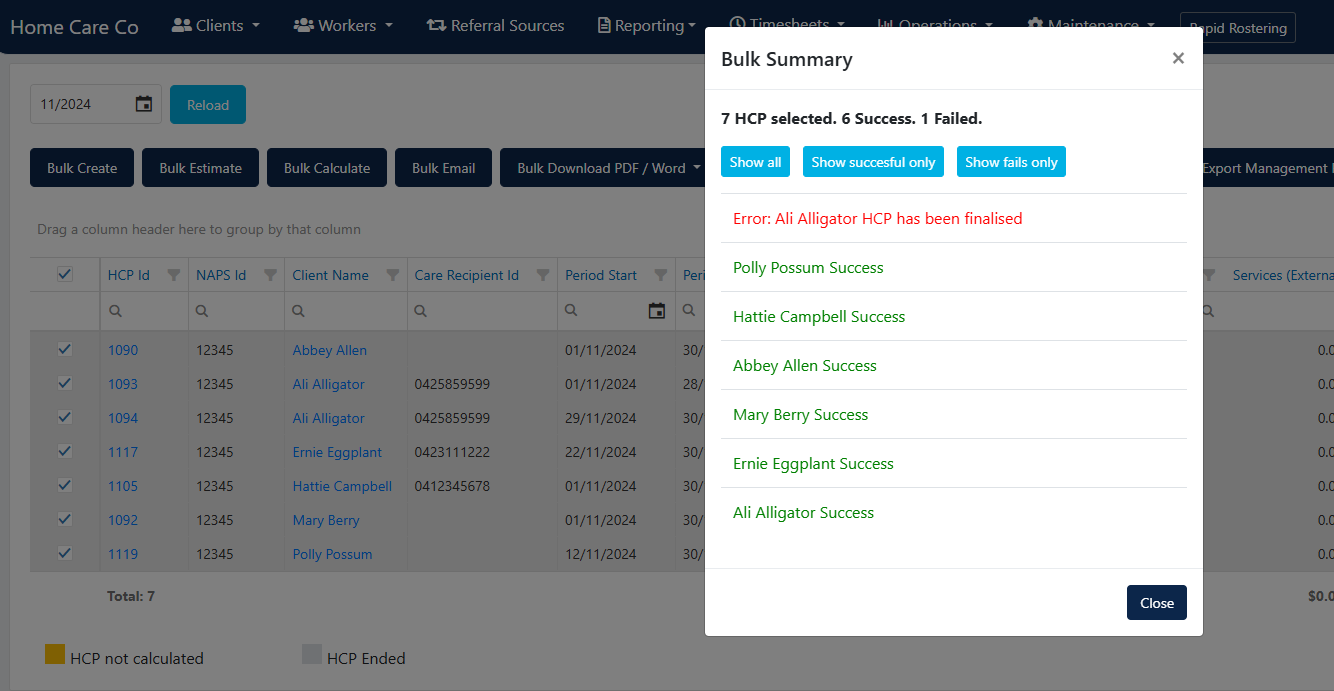 Ensure all expenses, services, and fee changes (including Income Tested Care Fees and management fee overrides) are entered before the final bulk calculate.
1. Select the month and click **Reload**
2. Ensure all clients are calculated
3. Tick the clients to include
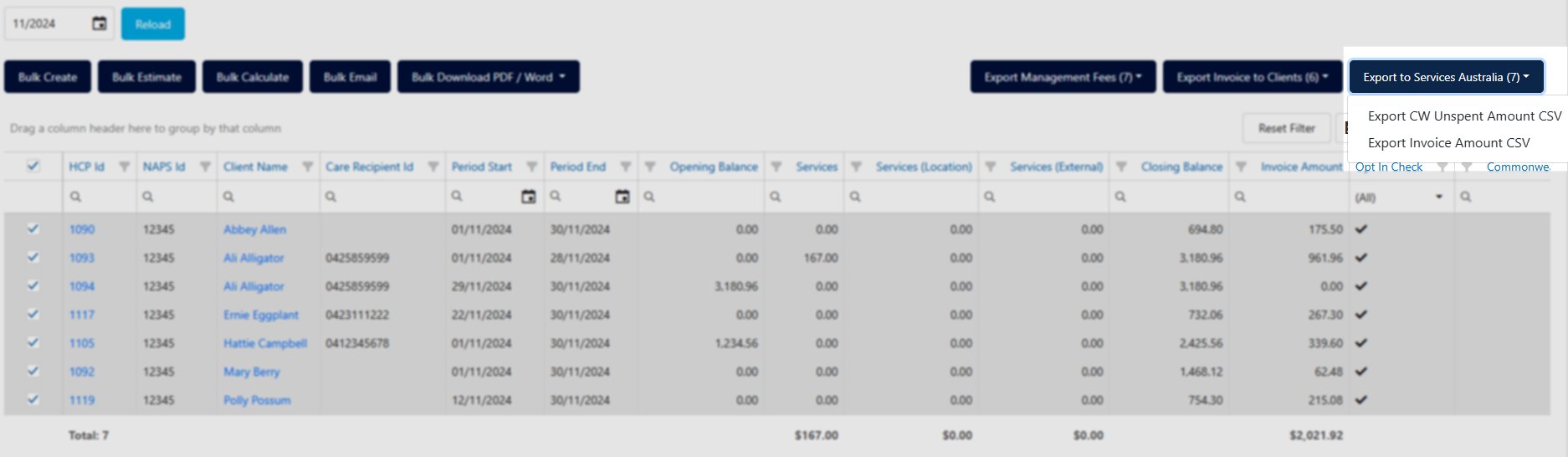
4. Click **Export to Services Australia**
5. Choose **Export CW Unspent Amount CSV** or **Export Invoice Amount CSV**
Ensure all expenses, services, and fee changes (including Income Tested Care Fees and management fee overrides) are entered before the final bulk calculate.
1. Select the month and click **Reload**
2. Ensure all clients are calculated
3. Tick the clients to include
4. Click **Export to Services Australia**
5. Choose **Export CW Unspent Amount CSV** or **Export Invoice Amount CSV**
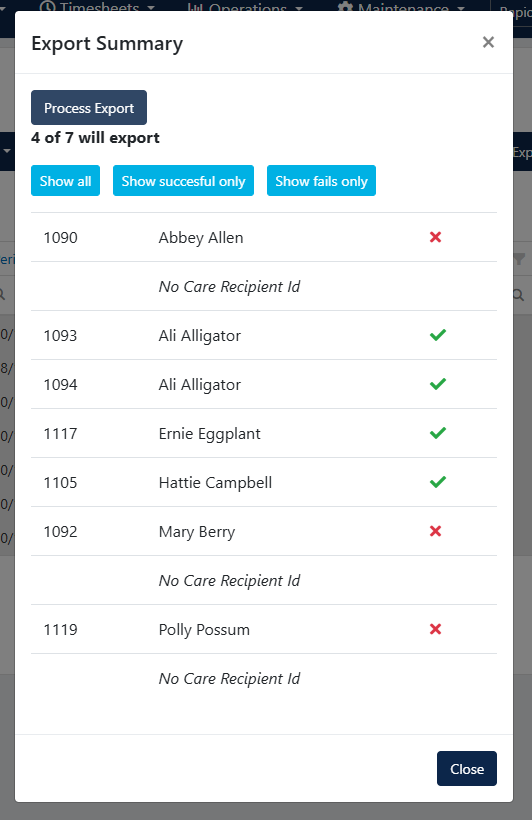
 Review the validation summary. If all clients show green ticks, click **Process Export** to generate the CSV file for upload to the Services Australia portal.
 The Commonwealth Unspent Amount process only picks up values for provider-held amounts. If your organisation has none, skip this step.
## SAH monthly statements
The SAH Statements feature generates and sends monthly participant statements summarising services, budget usage, and care management activities.
### Statement workflow
The recommended order for accurate statements:
1. Submit SAH claims to Services Australia
2. Upload Payment Statement CSV and reconcile
3. Generate invoices (government and participant portions)
4. Generate and send monthly statements
Statements do not submit or reconcile claims, and do not generate invoices. Always generate statements after reconciliation for accurate figures.
### Statement dashboard
The dashboard shows banners indicating how many participants need statements:
| Banner colour | Meaning |
| -------------- | ---------------------------------------------- |
| **Blue** | Current month participants needing statements |
| **Amber** | Previous month participants needing statements |
| **Red** | Two months ago (overdue) |
| **Green tick** | All up to date |
### Creating and sending statements
Navigate to the **Statements** section. The dashboard shows participants who need statements for each month.
Click **Create**, review the participant list, select individuals or use **Select All**, and click **Create Statement**.
Check each participant's statement for correct budget information, communication preference, and contact details. Recreate individual statements if data has changed.
Click **Send Statement** to email statements and generate a ZIP file for postal delivery. Statements are only sendable for previous months (not the current month).
After sending, download the ZIP file containing PDFs for participants who need postal delivery. Print and mail these promptly.
### Statement statuses
| Status | Description |
| ------------------ | --------------------------------------------- |
| **Draft** | Being prepared, participants added or removed |
| **Sent** | Delivered to participants |
| **Partially Sent** | Some sent, new additions still in draft |
| **Failed** | Generation failed, check errors |
| **Warning** | Generated with warnings, review recommended |
### Communication preferences
| Preference | Delivery method |
| -------------- | ---------------------------------------- |
| **Email** | Sent via email only |
| **Post** | Included in ZIP for printing and mailing |
| **Email/Post** | Both emailed and included in ZIP |
## Running into issues?
See [Client management troubleshooting](/troubleshooting/general) for common errors and fixes.
## Related articles
Set up and manage Support at Home agreements
Track care management time and activities
Record and manage expenses on the client profile
The Commonwealth Unspent Amount process only picks up values for provider-held amounts. If your organisation has none, skip this step.
## SAH monthly statements
The SAH Statements feature generates and sends monthly participant statements summarising services, budget usage, and care management activities.
### Statement workflow
The recommended order for accurate statements:
1. Submit SAH claims to Services Australia
2. Upload Payment Statement CSV and reconcile
3. Generate invoices (government and participant portions)
4. Generate and send monthly statements
Statements do not submit or reconcile claims, and do not generate invoices. Always generate statements after reconciliation for accurate figures.
### Statement dashboard
The dashboard shows banners indicating how many participants need statements:
| Banner colour | Meaning |
| -------------- | ---------------------------------------------- |
| **Blue** | Current month participants needing statements |
| **Amber** | Previous month participants needing statements |
| **Red** | Two months ago (overdue) |
| **Green tick** | All up to date |
### Creating and sending statements
Navigate to the **Statements** section. The dashboard shows participants who need statements for each month.
Click **Create**, review the participant list, select individuals or use **Select All**, and click **Create Statement**.
Check each participant's statement for correct budget information, communication preference, and contact details. Recreate individual statements if data has changed.
Click **Send Statement** to email statements and generate a ZIP file for postal delivery. Statements are only sendable for previous months (not the current month).
After sending, download the ZIP file containing PDFs for participants who need postal delivery. Print and mail these promptly.
### Statement statuses
| Status | Description |
| ------------------ | --------------------------------------------- |
| **Draft** | Being prepared, participants added or removed |
| **Sent** | Delivered to participants |
| **Partially Sent** | Some sent, new additions still in draft |
| **Failed** | Generation failed, check errors |
| **Warning** | Generated with warnings, review recommended |
### Communication preferences
| Preference | Delivery method |
| -------------- | ---------------------------------------- |
| **Email** | Sent via email only |
| **Post** | Included in ZIP for printing and mailing |
| **Email/Post** | Both emailed and included in ZIP |
## Running into issues?
See [Client management troubleshooting](/troubleshooting/general) for common errors and fixes.
## Related articles
Set up and manage Support at Home agreements
Track care management time and activities
Record and manage expenses on the client profile